
We may receive a commission from our partners if you click on a link to review or purchase a product or service. Click to Learn More
Google Meet pricing ranges from $7 to $22 per user, per month, which is the cost of a Google Workspace suite subscription. You can use the free call conferencing service to schedule, host, and manage video meetings for friends and coworkers alike.
The video call platform has an intuitive interface and offers unrivaled compatibility with other Google Workspace tools, such as Gmail and Google Calendar. With this in mind, it’s no surprise it’s used by 300 million people per month. All in all, Google Meet provides a smooth user experience with a wide range of in-call features such as virtual backgrounds, emojis, and breakout rooms.
In this guide, we’re going to explain to you some of the features, pricing plans, pros, cons, and overall functionality of Google Meet. But it’s a good idea to compare Google Meet pricing to other top web conferencing providers, so you can decide whether or not this popular video conferencing platform is the right fit for your company.
|
Price
|
Licenses
|
Participants
|
Time limit
|
Whiteboard
|
Breakout rooms
|
||
|---|---|---|---|---|---|---|---|

|
|
|
|
|
|||
|
Free |
Starter |
Standard |
Plus |
Enterprise |
|||
|
Free |
On request |
||||||
|
1 |
up to 300 |
up to 300 |
up to 300 |
Unlimited |
|||
|
100 |
100 |
150 |
500 |
1,000 |
|||
|
60 minutes |
24 hours |
24 hours |
24 hours |
24 hours |
|||
|
|
|
|
|
|
|||
|
|
|
|
|
|
Google Meet: At a Glance
Google Meet might be the best online tool for simple, hassle-free video meetups. Everyone can join from just one link on their Google calendar, with no software downloads.
After you click on the link, you’ll be brought through to the “Join Now” screen, which will show you who’s already joined the call and give you a chance to adjust your brightness – rather than dropping you straight into the call.
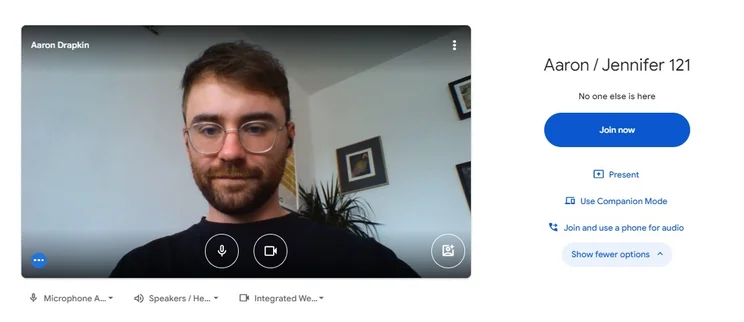
Tech.co Content Manager Aaron Drapkin showcases Google Meet’s Join Now screen. Image: Tech.co testing
Once you start the call, the interface will automatically highlight whoever’s talking, and you’ll be able to share screens or use live captioning.
That’s all available on the free plan, too, making Meet a top video tool for personal use. Google Meet is, hands down, the first video tool that I reach for when I need to catch up with a friend.
Businesses should consider a paid plan: At Tech.co, we’ve enjoyed a paid Google Meet plan for years. Depending on the plan, you’ll open up a suite of features that can streamline corporate meetings – the collaborative digital whiteboard is a standout. Perhaps the biggest reason to open your wallet, though, is the free plan’s restrictive 60-minute cap on meetings.
The platform integrates with other Google tools, of course. The Google Calendar integration in particular is very helpful for tracking your coworkers’ availability and for hopping into virtual meetings when needed.

Try Google Workspace for free
Try Google Meet along with business-level cloud storage for Docs, business Gmail and more
Google Meet Review: Pricing and Plans
After the free plan, you’ll find four pricing plans available from Google for video conferencing. Check out each plan below and read on for more in-depth reviews of each.
Google Meet Free Plan
For personal users, the Free plan is very robust – it even has options that make it appealing for small business owners. Free features include:
- Max meeting time: 60 minutes
- Max participants: 100
- Unlimited meetings
- Screen sharing
- Adjustable layouts
- Live captioning
- Mobile app
- Support: Online documents and forums
Even free users can invite external participants who don’t have a Google account. Google Meet also allows you to join meetings through a browser – rather than having to download software, like Zoom pushes you to do – so you can truly schedule and host a meeting in an instant.
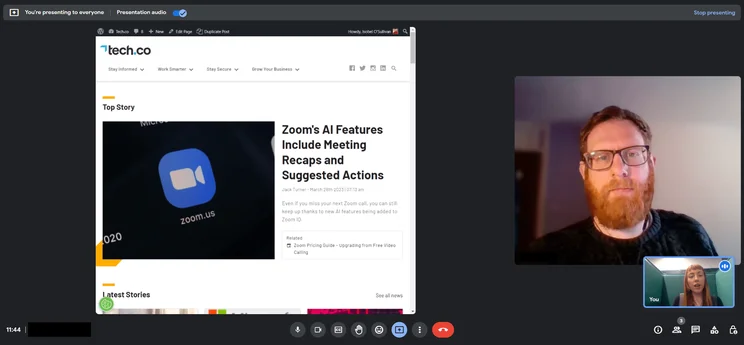
Tech.co team members use the presentation feature in Google Meet to share a screen. Source: Tech.co testing
Google Workspace Starter
The first paid pricing option is the Starter plan, which is available for $7 per user, per month. Starter’s features include everything in Free, plus:
- Max participants: 100
- US or international dial-in phone numbers
- Digital whiteboarding
- Cloud storage: 30 GB per user
- Support: 24/7 online
You’ll still have a cap of 100 participants, but the maximum meeting time increases to reach 24 hours, which we hope is supposed to be its version of “unlimited” rather than a challenge. Aside from the above features, Workspace Starter users benefit from a 99.9% uptime guarantee, and a range of security features including 2-step verification, SSL connections, password monitoring, and strength control.
Google has added some AI tools as well: Users will be able to use the “NotebookLM” AI research assistant to generate up to three interactive Audio Overviews per day, complete with two AI hosts.
As far as how this Starter plan compares to the rest of the industry, it’s definitely generous. GoTo Meeting’s starter plan costs $12 per user, per month. RingCentral’s plans start at $20 per user, per month when billed annually. Neither option includes all the additional features that Google Workspace does.
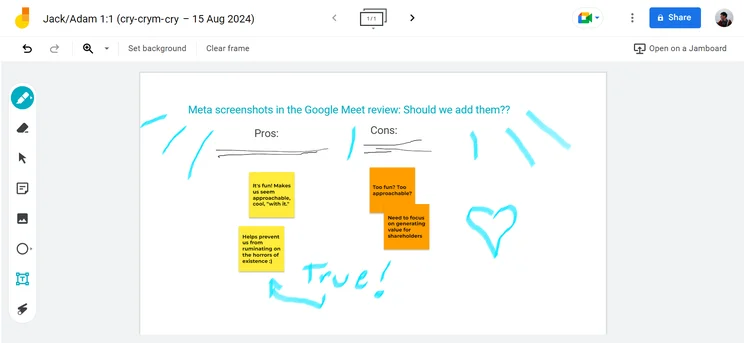
The Jamboard Whiteboard feature lets all users write or add virtual post-its to the same screen. Source: Tech.co testing
Google Workspace Standard
The next plan is the Standard plan, which costs $14 per user, per month. Standard’s features include everything in Starter, as well as:
- Max meeting time: 24 hours
- Max participants: 150
- Intelligent noise canceling
- Meetings can be recorded and saved to Google Drive
- Polling and Q&A functions
- Moderation controls
- Hand raising
- Breakout rooms
- Live annotations on presented content
- Cloud storage: 2 TB per user
- Support: 24/7 online
A host of extra features are added with the Standard plan, from breakout rooms to divide participants into smaller rooms during video calls to virtual hand-raising features for easier communication among large groups. The cap on AI-generated audio overviews increases from three per day to 20 per day.
This plan is only a little above the industry averages of competitors like Zoom and GoTo Meeting, which cost $14.16 per user, per month and $12 per user, per month, respectively.
Google Workspace Plus
The Plus plan will cost you $22 per user, per month. Plus’s features include everything in Standard, as well as:
- Max meeting time: 24 hours
- Max participants: 500
- Attendance tracking
- Cloud storage: 5 TB per user
- Support: 24/7 online
This plan doesn’t add many more functions that Standard doesn’t already offer, but it will appeal to large companies that will need the dramatically expanded cap on participants and storage: You’ll now be able to host 500 users at once, and can save many more recordings with 5 TB of space.
Google Workspace Enterprise
Google Meet’s enterprise-level solution is the Workspace Enterprise plan, which includes everything in Plus, as well as:
- Max meeting time: 24 hours
- Max participants: 1,000
- In-domain live streaming
- Cloud storage: 5 TB per user (with ability to request more)
- Support: 24/7 online
This plan adds the ability to livestream within your website domain, for up to 100,000 viewers. No public pricing is available for this plan, so you’ll have to contact Google’s sales team for more information.
Can I Get a Free Trial of Google Meet?
Anyone can sign up for a 14-day free trial of the Workspace Starter, Standard, or Plus plans. For the duration of the trial, you can have as many users as you’d like, so an entire company can trial the entire Workspace suite, including all Meet features.
The Enterprise plan does not offer a free trial. On the other hand, the Free plan is always free, no matter how long you use it.
Google Meet Features Review
Google Meet offers a wide range of intuitive features – and a few added extras – that should make your video chat experience simple and enjoyable.

Tech.co team members use the live caption feature in Google Meet. Source: Tech.co testing
Here are a few of the main features you’ll find in the Google Meet platform:
- Adjustable layouts and screen settings
- Gallery view available for all users
- Video and audio preview screen before you join
- Meeting host controls, e.g. pin, mute, and remove participant
- Screen sharing for all participants
- Live chat functionality
- Whiteboard ‘Jamboard’ feature
- Integration with Google and Microsoft Office apps
- iOS Audio and video locking
- Breakout rooms for moderators
- Live translated captions
- Live annotations
- Companion mode
- Picture-in-picture mode
One of the standout features included in Google Meet is the live captioning functionality (seen above), not because other video conferencing tools like Microsoft Teams or Slack don’t have it (they do), but mostly because Google does it better than most. Thanks to Google’s wealth of data and computing power, the live captions for Google Meet are quick, accurate, and can handle over 70 languages, so your team members can stay properly informed throughout the meeting.
Companion mode is another useful perk, as it allows users to join a Google Meet video meeting on a second screen. This is a life-saver for hybrid workplace meetings since it gives everyone in a conference room access to a personal chat window rather than forcing them to share one account. At Tech.co, we use this feature on a weekly basis.
Google Workspace Suite
The larger Google Workspace suite, which all paying users of Google Meet will have access to, offers far more than just Meet: Paying users can access a range of features across many software services including Gmail, Drive, Calendar, Chat, Docs, Sheets, Slides, and the Gemini app.
The Workspace suite is constantly getting updates and new features. Most recently, it has added an AI tool to automatically take notes during video meetings, available to those with the Gemini Enterprise add-on or other AI add-ons.
It’s also added more granular control for Google Apps Scripts, due to a new toggle button in the Admin console that determines which users can create, edit, and execute app scripts; and Google Meet annotations functionality for Android mobile devices that allow presenters to highlight content and add notations on top of presented content.
Check out our Google Meet vs Microsoft Teams comparison guide
Google Meet

In Short
-
Google Meet is the current name for Google’s most popular video conferencing solution. While the name and branding has changed a lot of the years, the functionality has remained pretty solid, with great G-Suite compatibility. With a free version offering 60-minute meetings, plus good value business plans on the full Google Workspace (G-Suite) platform, there’s a reason this is one of the most popular options around the world.
30 Second Facts
- Established: 1998
- HQ: Mountain View, CA
- Unrivaled G-Suite compatibility
- Enterprise-level security for all
- Free version available
Images

Ease of Use
Google Meet is very easy to use in comparison to many other competitors. I’m a big fan of the design, which includes plenty of white space alongside clean round icons and a red “leave call” button that’s easy to spot: It’s an intuitive layout that makes for easy calls.
Add in the simple invite instructions and the basic features built obviously into the interface, and you have a tool that even beginners can figure out pretty fast.
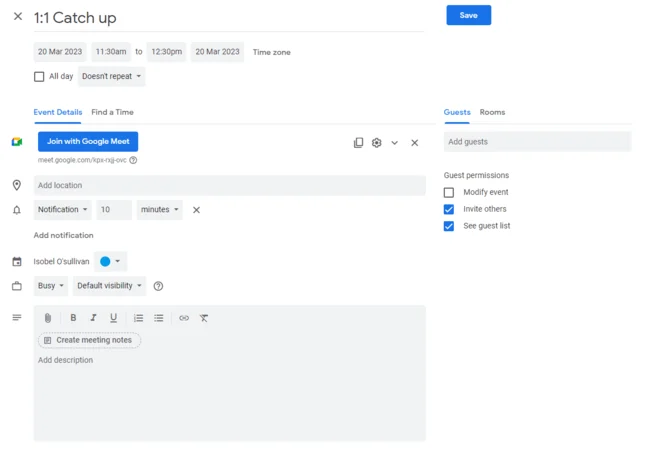
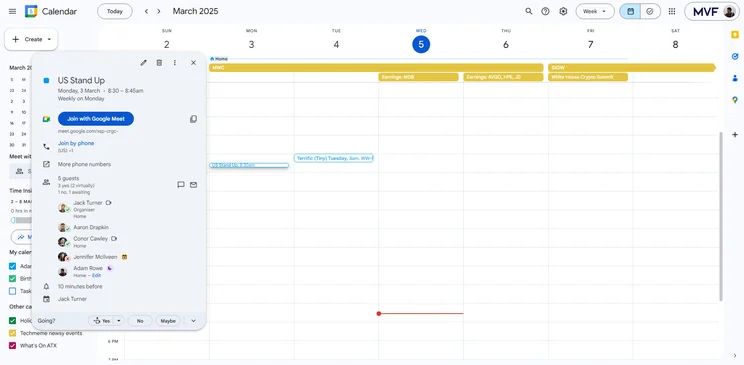
Google Meet also integrates smoothly with other G-Suite platforms. Invites can be easily sent through Gmail, added to your Google Calendar, and joined through comprehensive event invites that have a handy Google Meet button for instantly joining your meeting.
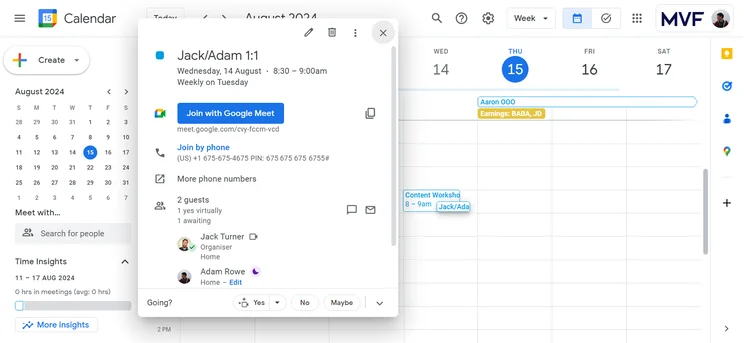
The calendar integration feature in Google Meet makes it easy to open a video call with a single click. Source: Tech.co testing
Security
Google Meet encrypts all data in transit by default, whether you’re using a browser, the iOS or Android app, or meeting rooms powered by Google Meet hardware. As an additional precaution, all meetings saved to Google Drive are encrypted at rest.
To get more technical, Google Meet “adheres to Internet Engineering Task Force (IETF) security standards for Datagram Transport Layer Security (DTLS) and Secure Real-time Transport Protocol (SRTP),” according to its website.
Google Meet Apps
Google Meet is available online, so you don’t need to download software to use it, unlike competitors such as Zoom or Microsoft Teams. That said, you can access the Meet conferencing service on iOS and Android by downloading the apps available on the App Store and Google Play Store.
These apps offer all the same functionality as the browser version of Google Meet, allowing you to schedule 1:1 and group meetings in an instant.
Support
Google Meet’s free plan has no live support, but users can visit the Google Help Center for online documentation to address common concerns, like how to start and join meetings, or how Google Meet interacts with other products. The Help Center also includes an online forum, so other Google Meet users can help each other.
G-Suite and Google Meet subscribers have access to 24/7 online support from Google representatives. They’ll still have access to the online forums, too, and can do some general-purpose troubleshooting before reaching out to support staff.
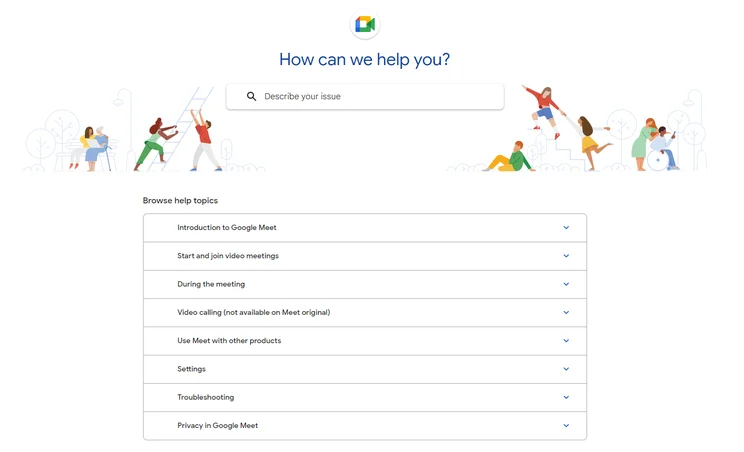
Google Meet’s customer service homepage steers users toward online documentation. Source: Tech.co testing
Google Meet continues rolling out splashy new features on a regular basis. As of our latest update, the new feature is “picture-in-picture mode,” which allows users to keep seeing their video chat screen while even opening a different tab.
If you turn on this feature, opening a new tab during your call will trigger the creation of a small, movable version of your video call. I’ve found this extremely useful for taking notes, checking documents, and giving presentations without losing sight of the other video call participants.
Other new features include the ability to “stack” add-ons like a filter, a background, and accessories, as well as new emoji reactions and expanded screen-sharing options.
Google Meet Video Conferencing Hardware
Google offers a range of hardware bundles, in collaboration with other companies, that can cater to all company and room sizes.
There are three hardware bundle kits from ASUS, which include microphones, speakers, remote controls, and computer systems, depending on which one you opt for. You’ll be able to purchase a starter kit, or small and large room bundles, each specifically catered for your particular needs. The ASUS bundles are the least expensive option for video conferencing hardware from Google.
There are also three more expensive hardware bundle kits available from Logitech, dubbed “Series One,” which include microphones, speakers, remote controls, computer systems, and some mounting materials. You’ll be able to purchase a small, medium, or large room bundle, which increases the number of cameras and microphones, as well as adding a handy display mount.
Take a look at the pictures and pricing options below to get a better idea of what these bundles look like:
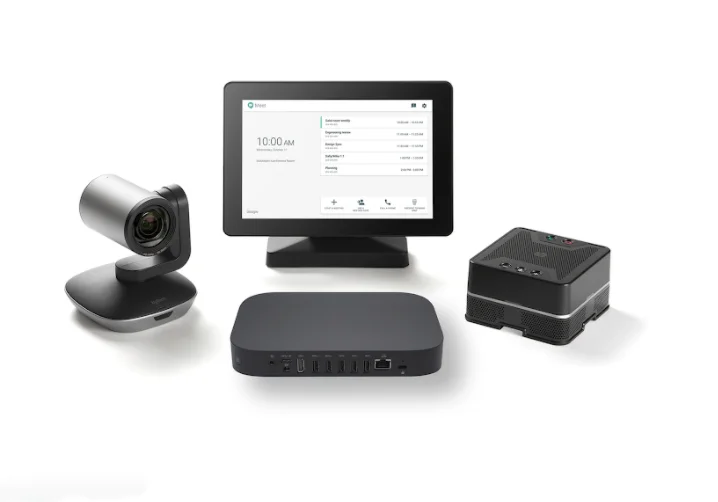
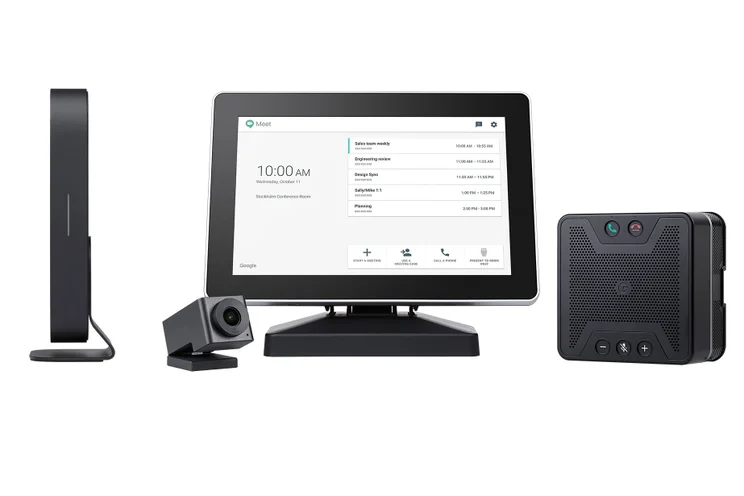
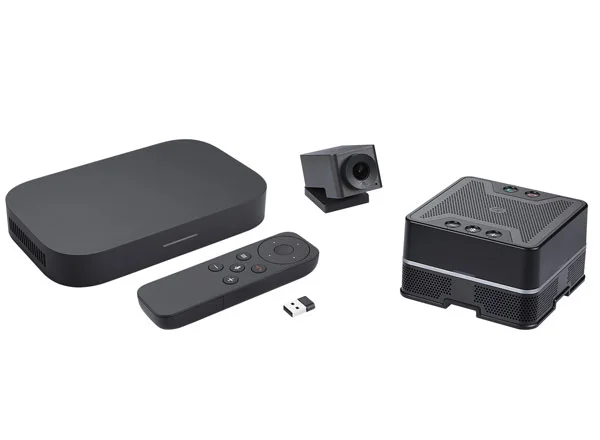
$3,843 – $4,332
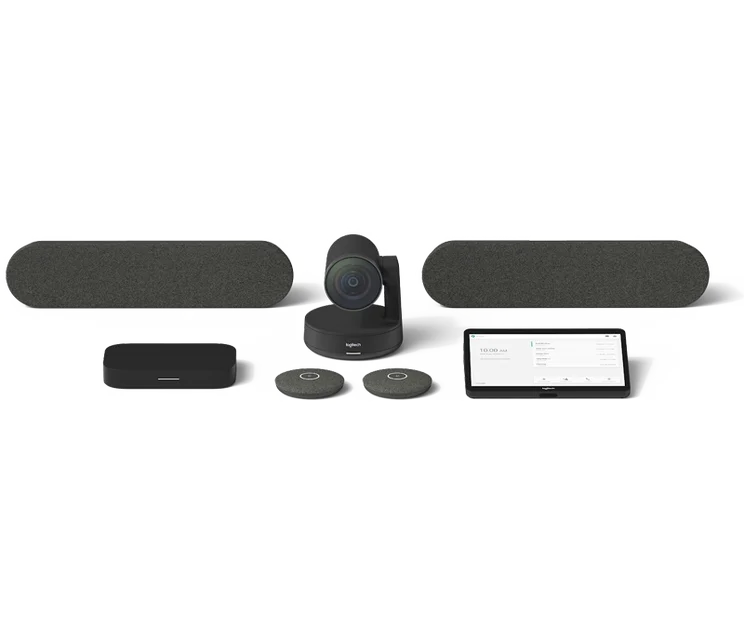
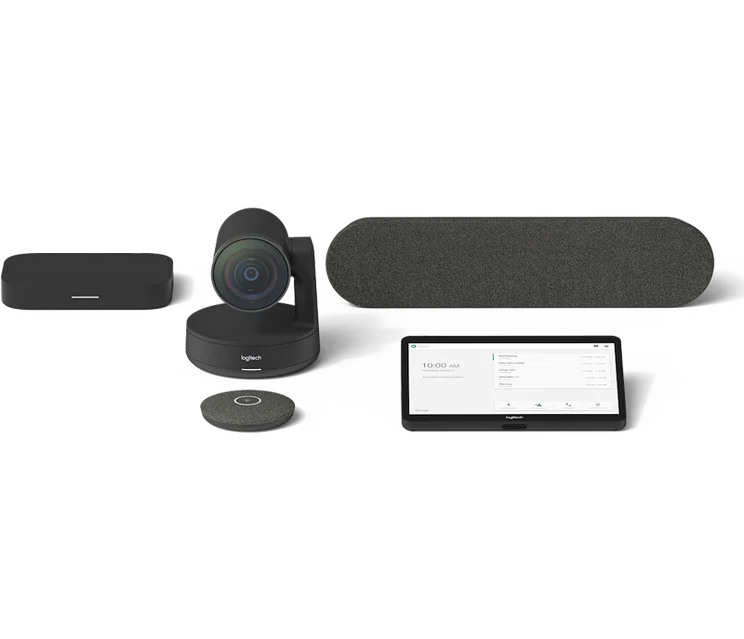
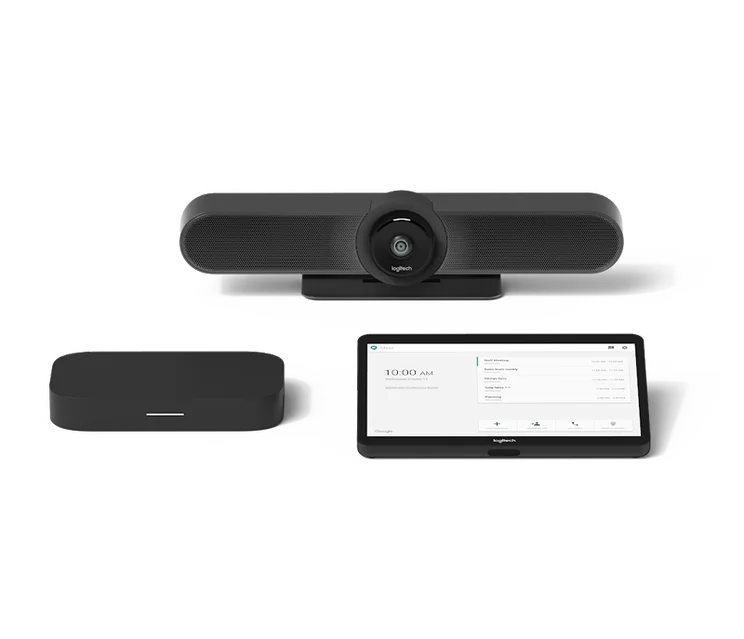
Google Meet Hardware Bundle by Logitech
$2,998.97 – $5,097.96
Make sure you buy your hardware directly from ASUS, Logitech, or another one of Google’s trusted partners: scammers may use similar URL in phishing attempts to get your credit card details.
Google Meet Alternatives
Google Meet might be one of the more popular video conferencing solutions out there, but it’s certainly not the only one. If you don’t think Google Meet is the right fit for you, there are plenty of other options out there that will meet your needs.
|
Starting price
The lowest starting price for a paid plan. The lowest price available for your business will depend on your needs
|
Free plan
|
Maximum participants
|
||
|---|---|---|---|---|
 |
 |
|
 |
 |
|
Zoom |
RingCentral |
Google Meet |
Microsoft Teams |
Slack |
|
$14.16/user/month |
$10/user/month |
$7/user/month |
$4/user/month |
$7.25/user/month |
|
|
|
|
|
|
|
300 |
200 |
1,000 |
300 |
50 |
Slack
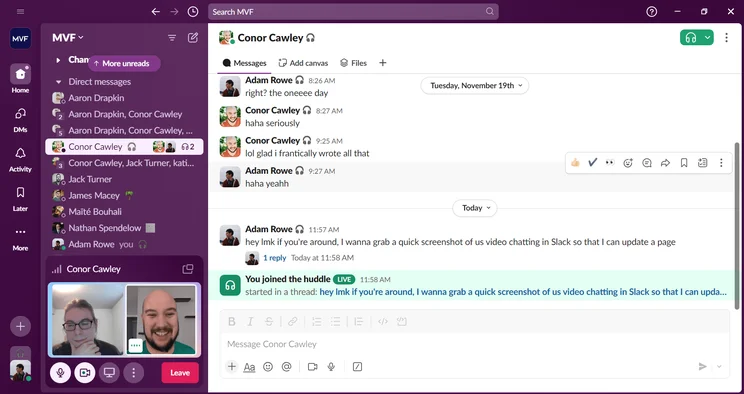
Two Tech.co coworkers talk inside a “huddle” video chat on Slack. Source: Tech.co testing
If your business prioritizes convenience and it’s already using the Google Workspace suite, then you might prefer Slack over Google Meet. The service is simple and easy to use, with more advanced search features that users can deploy to dig up old messages when needed.
The two services are certainly similar: You can read our full Slack pricing guide here. Google Meet was considered one of our top Slack alternatives, because it also offers a robust team messaging platform — Google Chat — built in to the Gmail service.
Microsoft Teams

Microsoft Teams users can create and schedule video chat meetings within the platform. Source: Tech.co testing
Microsoft Teams is another top alternative to Google Meet, since it provides the same business infrastructure alongside a video conferencing tool that integrates with other Microsoft services. Microsoft Teams works best as a business collaboration platform, while Meet is great for personal use.
However, Meet is a less complex system than Microsoft Teams, with a shorter learning curve to overcome. Ultimately, Teams is likely the best pick for a business that already relies heavily on Microsoft products, while we’d recommend Google Meet for everyone else.
Yes – Google Meet is a high-quality and affordable option for making video calls at work. The intuitive design makes it easy for everyone, no matter their experience level, and the solid feature list will be able to handle almost any business’s requirements. Pricing is fair, and even includes access to all the other apps in Google’s Workspace suite.
Simply put, if you use Google platforms like Calendar and Gmail, Google Meet will be a seamless addition to your day-to-day operations. Considering Gmail has more than 3 billion users worldwide, it’s safe to say Google Meet can work for you.
If you’re interested in Google Meet or other video conferencing tools, take advantage of our simple quote comparison form to receive and compare accurate, custom prices in minutes.
Frequently Asked Questions
Creating a Google Meet link is how you share your meetings with other participants. These links can be used and reused as you see fit. However, if you haven’t used a Google Meet link in 365 days, the link will expire and users will not be able to attend meetings with it anymore.
Google Meet is secure compared to most of its competitors. With encryption in transit and at rest, as well as two-step authentication and Advanced Protection Program Enrollment for all plans, you can be pretty sure that your video conferencing meeting will be secure.
Meeting organizers and members of the same team as the meeting organizer can take advantage of Google Meet’s meeting recordings feature. Once you’ve started a meeting, all you have to do is click the settings button in the bottom right corner, and click “record meeting.”
However, this feature is only available with paid plans, so you’ll need to pay more per month to get access to this feature. Plus, Google notes that it may be illegal to record without the consent of meeting participants, so make sure to do that ahead of time.
If you click on, sign up to a service through, or make a purchase through the links on our site, or use our quotes tool to receive custom pricing for your business needs, we may earn a referral fee from the supplier(s) of the technology you’re interested in. This helps Tech.co to provide free information and reviews, and carries no additional cost to you. Most importantly, it doesn’t affect our editorial impartiality. Ratings and rankings on Tech.co cannot be bought. Our reviews are based on objective research analysis. Rare exceptions to this will be marked clearly as a ‘sponsored’ table column, or explained by a full advertising disclosure on the page, in place of this one. Click to return to top of page


