


We may receive a commission from our partners if you click on a link to review or purchase a product or service. Click to Learn More
ClickUp is the best AI task management software on the market, with several available project views, built-in time tracking on its first paid plan ($7 per user, per month), and its outstanding flagship AI tool, ClickUp Brain.
ClickUp is also the best free AI project management tool on the market, with a comprehensive free plan that includes no user limit.
To inform this guide, I personally tested ClickUp across a range of tasks. I have included my thoughts below, along with a breakdown of how the platform compares to competitors such as monday Work Management and Trello.
- ClickUp offers several different project views, including Gantt charts and whiteboards, to visualize complex workflows that auto-populate and sync across the platform.
-
ClickUp offers the best value for teams on a budget, with paid plans starting at $7 per user, per month, which is lower than monday Work Management and Asana.
-
The “Free Forever” plan offers unlimited members and tasks, making it the best free AI project management tool available.
-
ClickUp Brain can generate task descriptions and pull actions from your emails, a process that took under one minute during testing.
-
Because of its feature-rich interface, ClickUp has a slightly steeper learning curve than monday Work Management.
ClickUp: Key Features
Below, you’ll find a breakdown of key ClickUp features.
To gather information for this article, I tested ClickUp myself across a number of different tasks. All in all, I found it to be an outstanding AI project management platform.
I was particularly impressed with ClickUp Brain, which is the best AI project management tool that I’ve tested. Not only did it produce highly accurate and on-brief results, but it did so in very little time.
While not quite as quick as Wrike, it was far more effective at responding to my prompts.

ClickUp

In Short
-
Pros
- 11+ ways to view project progress and data
- Useful “Chat” view for collaboration
- Team view for organizing tasks by team member
- Cheaper than monday Work Management or Wrike
- Agile project management features
- Vast number of features, even on cheap plans
-
Cons
- Customizability can be overwhelming to new users
- Not great at compiling project feedback
- Comparatively clunky automation builder
- Slow to load on our tests
Pricing
- Free plan available
- Unlimited: $7/user/month
- Business: $12/user/month
- Enterprise: custom pricing
Images
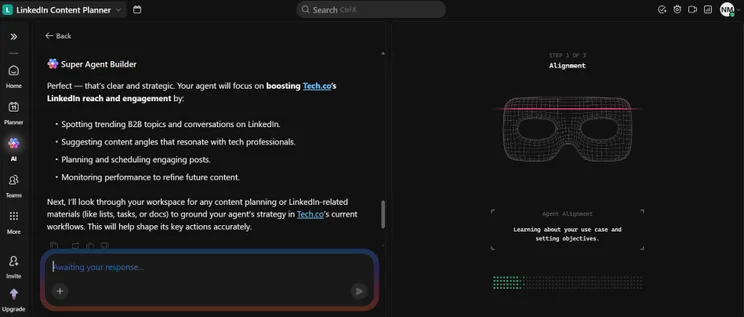
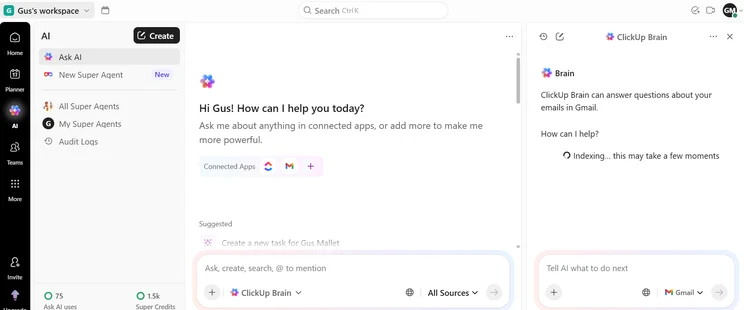
ClickUp Task Management Features
ClickUp is the best AI task management platform, with standout features including Gantt charts, a Kanban board, and a custom automation builder to streamline workflows.
Managing tasks in ClickUp is easy. Simply click on a task to open its individual card, after which you can quickly add relevant files, assign them to team members, and add sub-tasks.
The inclusion of ClickUp Brain, which is built into individual task cards, makes this process even easier. Rather than manually inputting information, you can simply ask the chatbot to do this for you.
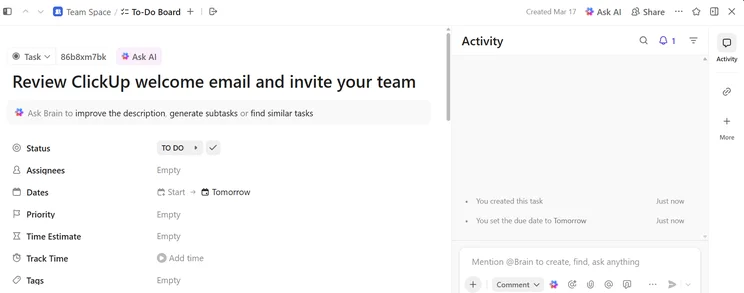
A task card generated by ClickUp Brain, the platform’s flagship AI model. Source: Tech.co testing
While managing tasks in ClickUp is generally easy, locating task dependencies is a little more tricky, as it is tucked away in a small menu on the right-hand side of the task box.
This is a slight issue with ClickUp generally. As the platform is so feature-rich, the interface can occasionally be a little crowded. monday Work Management is an example of a platform that succeeds in balancing usability with robustness.
ClickUp has an enormous range of features, which can be a little overwhelming at first. However, you don’t have to do much configuring once you’ve inputted your initial basic task data, as ClickUp auto-populates the different available project views for you.
I found managing tasks particularly easy, in part thanks to the AI assistance that’s on hand to generate task descriptions and sub-tasks.
I also think the Chat view is a feature that sets ClickUp apart from the other project management software I’ve tested. You can create chats for different purposes like you can in Microsoft Teams, which means it’s really easy to communicate.
ClickUp 3.0 is actually a little bit clearer and less cluttered than the previous version of the software. There are more functions and features at your fingertips, but also more instructions on how to use them, too.
I found setting up was a lot easier than in the old version of ClickUp, although there’s still room for improvement when it comes to integrations and customer support.
ClickUp AI Features
One area in which ClickUp excels is its AI features. I tested ClickUp Brain myself, and I can confirm that it is an excellent tool.
After integrating with Gmail, I asked the bot to extract a “to-do” list from my last five emails, and insert them into a “to-do” board with individual task cards and deadlines.
The whole process took under one minute, and ClickUp built a fully functioning board with the task cards that I’d requested. I was highly impressed.
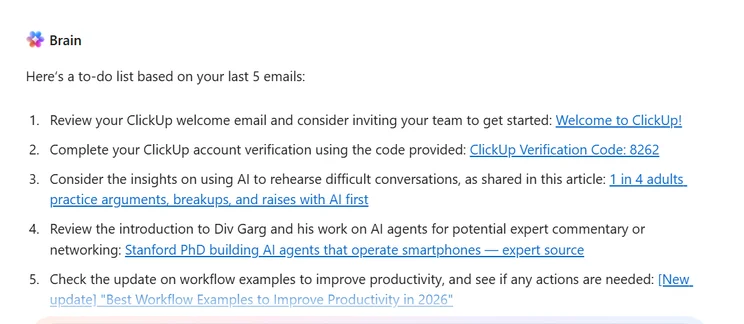
ClickUp Brain pulled actions from my last five emails in about 20 seconds. Source: Tech.co testing
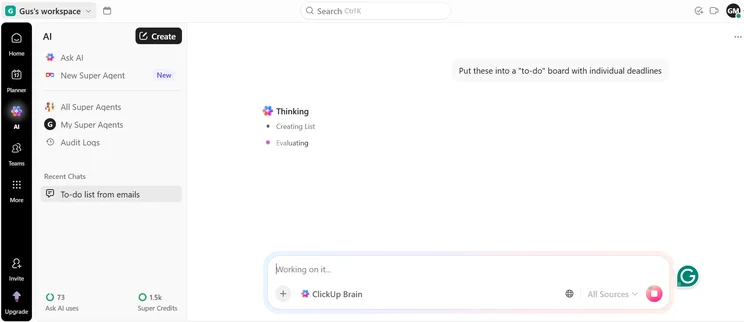
ClickUp Brain "thinking" before creating a "to-do" board from my prompt. Source: Tech.co testing
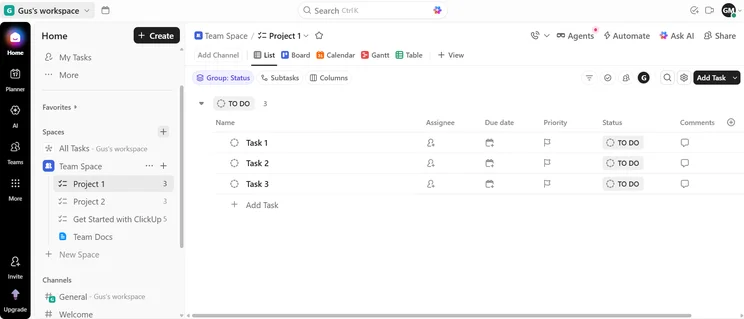
ClickUp Brain generated a "to-do" board for me in around 30 seconds. Source: Tech.co testing
From end to end, the process took less than a minute. Source: Tech.co testing
I also asked ClickUp Brain to draft some email copy for me, which took under 10 seconds. Again, the results were impressive.
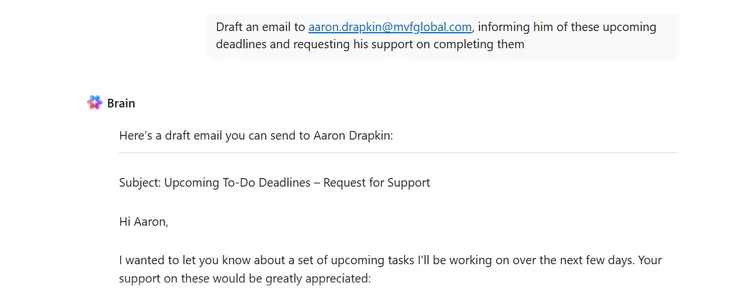
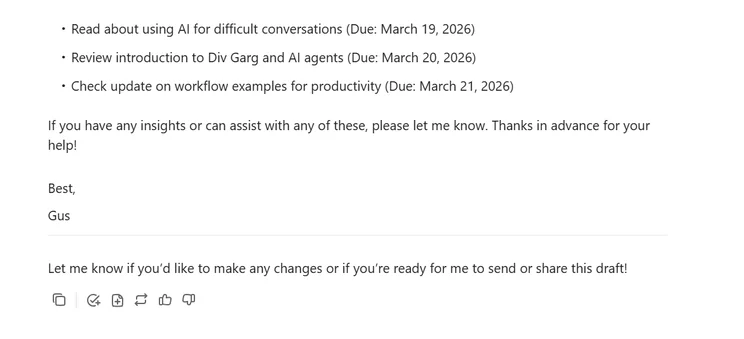
The email copy that ClickUp Brain generated for me, including my initial prompt. Source: Tech.co testing
Custom automations are available on all ClickUp plans, although there’s a limit of 100 actions per month on the free plan.
Creating automations is straightforward. Below is an example of an automation I built while testing the software, which changes who a task is assigned to when the status of that task changes to “final checks.”
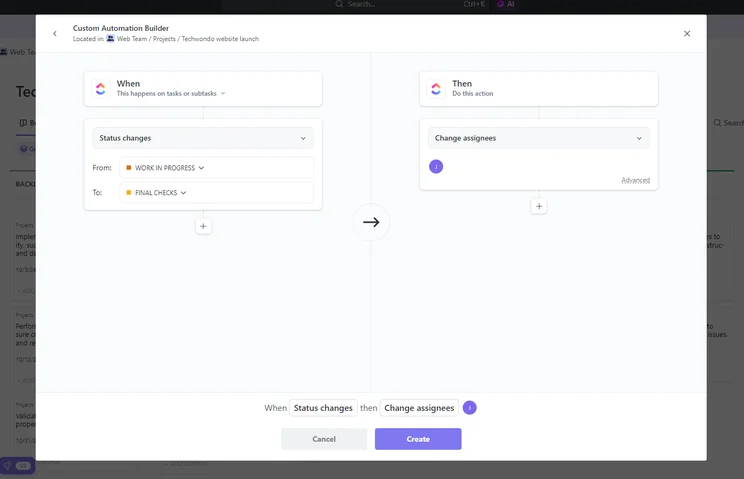
It was easy for me to select assignees and when the animation should take place. Source: Tech.co testing
However, much like managing tasks, the amount of choice does feel a little overwhelming. Automation building is often one of the more difficult project management software tasks, and it’s unhelpful to be presented with an avalanche of options in some cases.
By deploying a drag-and-drop approach, monday Work Management has a much more straightforward builder.
ClickUp Collaboration
ClickUp is one of the few providers that we’ve tested with an online whiteboard for brainstorming ideas. It also has a team messenger and a document editing feature on every plan.
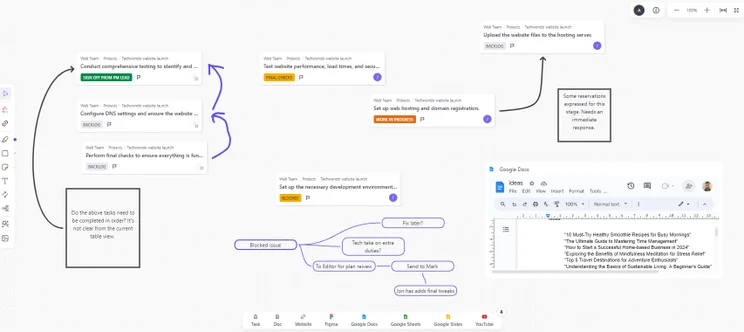
Hosting a discussion using ClickUp’s online whiteboard was straightforward, and I was impressed with how many interactive features were offered. Source: Tech.co testing
You can easily add relevant files and comment in the right-hand activity column, which also displays the task history, making it easy to catch up on the latest goings-on of each task.
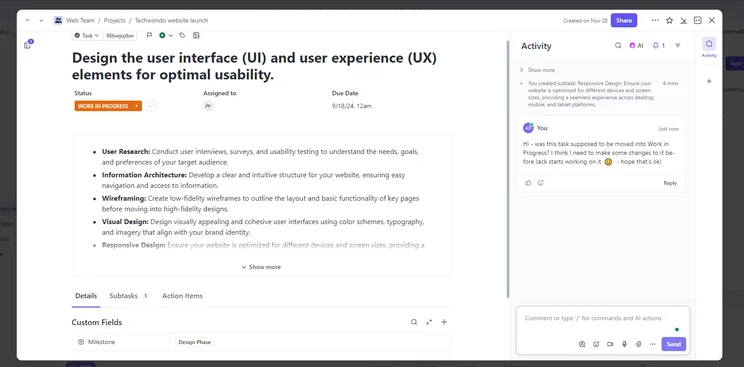
ClickUp’s activity bar helped me keep track of changes that had been made to a task. Source: Tech.co testing
ClickUp also has a Chat view which you can add to your top menu bar. You can add any combination of team members to a specific chat, so it resembles a messaging platform such as Slack.
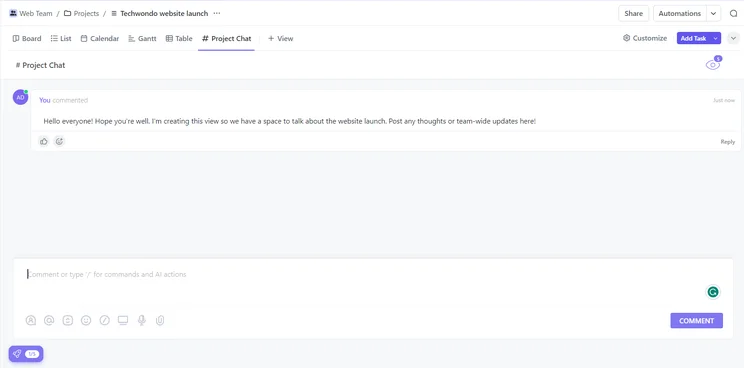
ClickUp Chat helped me stay in contact with my team thanks to its useful communication features. Source: Tech.co testing
ClickUp Reporting
You can use preset charts and widgets to display project data on all ClickUp plans. On the Business plan ($12 per user, per month) and upward, you can create custom charts and widgets.
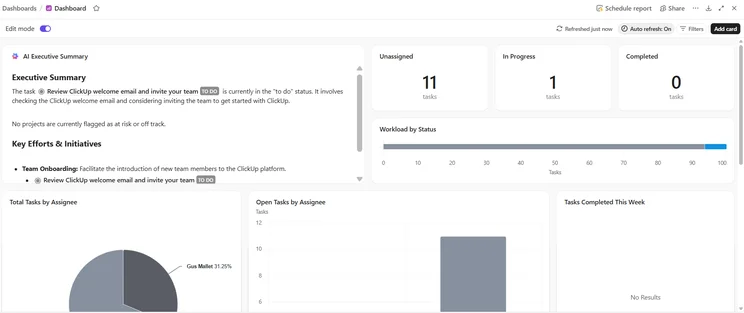
ClickUp includes an AI “Executive Summary” built into its dashboards. Source: Tech.co testing
While Asana auto-populates your first dashboard, ClickUp gives you a choice of three templates — a regular dashboard, a reporting dashboard, and a time-tracking dashboard.
You can also choose from a wide range of other templates, including several geared towards Agile teams.
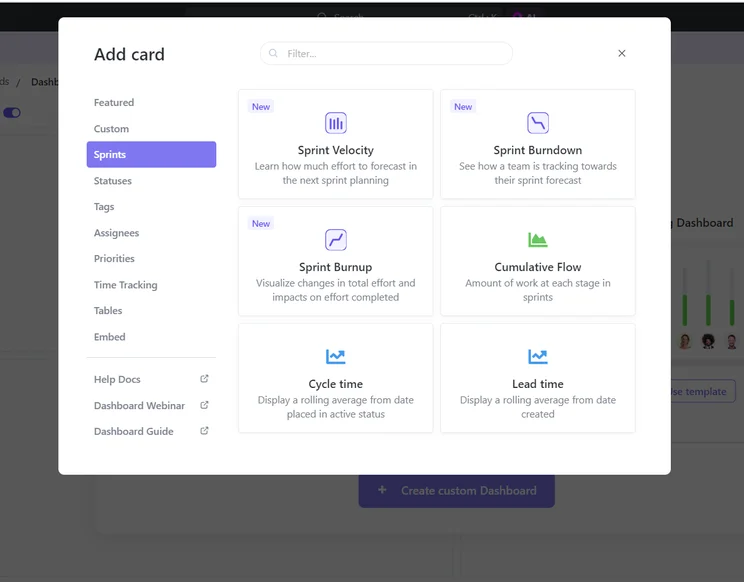
ClickUp’s Agile dashboards include details such as Sprint Velocity and Sprint Burndown. Source: Tech.co testing
ClickUp excels at data visualization, and its wide range of preset charts and widget templates are only matched by Asana and monday work management. However, it is less visually appealing than these two.
It’s very easy to create custom charts and widgets, especially compared to Smartsheet or Zoho Projects.
ClickUp Project Views
ClickUp offers a range of preset project management templates based on nine different organizational departments, including finance, marketing, operations, and IT.
You can also build custom project templates, and there’s a workflow designer available on every plan, which will help you visualize and organize all of your automations.
You can add different project views to the top menu bar, such as Gantt chart, Kanban board, Table view, and List view, for a variety of different project views.
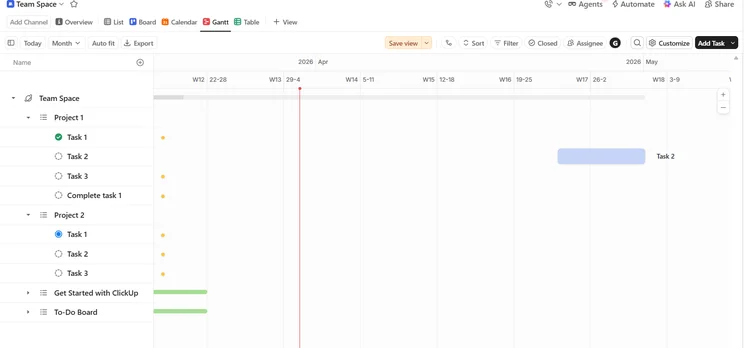
The Gantt chart view lets you plan time, manage resources, and visualize task dependencies in one location. Source: Tech.co testing
In the List and Table views, you can add columns such as a “progress” bar that will change depending on sub-task completion, or a “status” column that connects to your Kanban board.
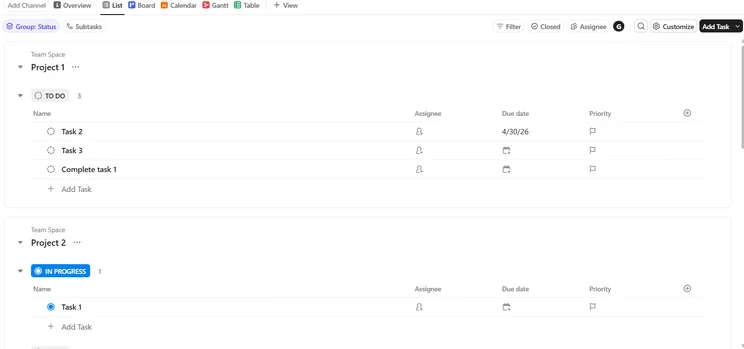
ClickUp’s List view let me assign tasks and edit their due dates, priorities, and milestones. Source: Tech.co testing
All the project data that you input during setup is accessible in every view, and when you change one thing, this will alter the information on other views, such as the List view, which ensures you’re never out of sync.
ClickUp exhibits some nice touches when it comes to project views. For example, I created a board view column called “Sign Off,” so ClickUp made it my final column and included a check box.
How Much Does ClickUp Cost?
ClickUp has four pricing plans — Free Forever, Unlimited, Business, and Enterprise.
Free Forever plan — Free
- Unlimited tasks
- Unlimited members
- Kanban boards
- Custom field manager
- 24/7 support
ClickUp’s free plan is the best free AI project management tool available, and a great fit for freelancers and solo workers.
Unlimited plan — $7 per user, per month
- Unlimited Gantt charts
- Unlimited storage
- Built-in time tracking
- Integrations with Slack, HubSpot, and more
- Email in ClickUp
With generous limits on spaces, custom fields, and integrations, the first paid ClickUp plan is a great option for most small businesses and teams.
Business plan — $12 per user, per month
- 5,000 automations/month
- Google single sign-on (SSO)
- SMS 2-Factor authentication
- Unlimited Timeline views
- Private whiteboards
The Business plan is a great fit for businesses that handle sensitive customer data, such as a cloud software provider.
Enterprise plan — custom pricing
- Unlimited custom roles
- 250,000 automations/month
- Enterprise permissions and governance
- Live onboarding training
- Dedicated Customer Success Manager
The Enterprise plan is geared towards very large businesses.
|
Price (annually)
The amount you'll pay per month, when billed annually
|
Key Features
|
||
|---|---|---|---|
 |
|
|
|
|
Free Forever |
Unlimited |
Business |
Enterprise |
|
Free |
$7/user/month |
$12/user/month |
Contact sales |
|
|
|
|
Alternatives to ClickUp
Alternatives to ClickUp include monday Work Management, Teamwork, Wrike, and Smartsheet.
monday Work Management
monday Work Management is the best overall AI project management tool on the market. The provider is extremely easy to use, with a powerful drag-and-drop automations builder, and a host of other great AI features.
Starting at $9 per seat, per month, monday Work Management is more expensive than ClickUp, and also has an inferior free plan.
Check out our full head-to-head comparison to learn more.
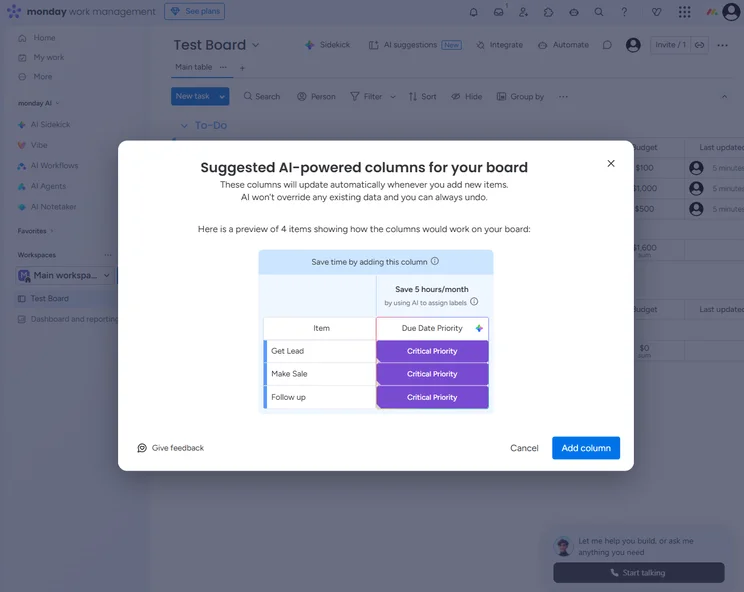
The AI suggestions in monday Work Management provide inspiration for how to use automation to improve your boards. Source: Tech.co testing
Asana
Asana can’t compete with ClickUp in terms of features, but it is easier to use, making it a better fit for users who are unfamiliar with AI project management software.
With paid plans starting at $10.99 per user, per month, Asana is significantly more expensive than ClickUp. To find out more about how these providers stack up, check out our full comparison.
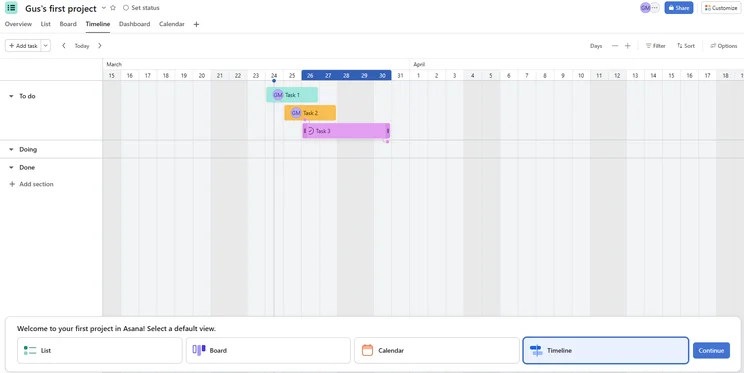
Timeline view is one of several project views available with Asana. Source: Tech.co testing
Smartsheet
Smartsheet is the best option for users who like to organize information in a spreadsheet, with powerful reporting, analytics, and data protection tools. It starts at $9 per member, per month, so is more expensive than ClickUp.
See how ClickUp compares to the wider competition in our guide to the best project management software.
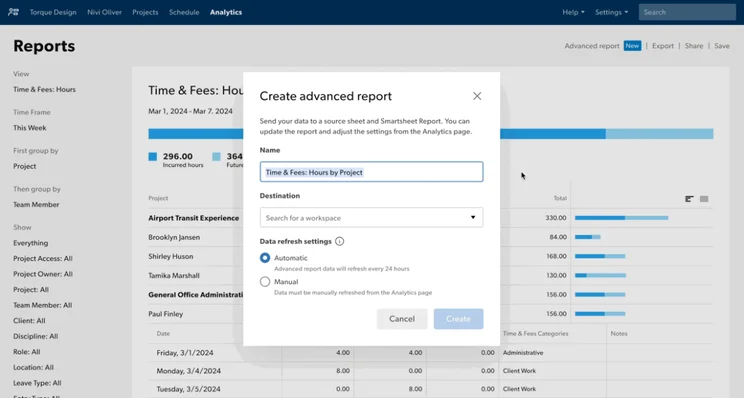
Smartsheet let me create a report easily, and edit information like its name and workplace destination. Source: Tech.co testing
|
Price from
All prices listed as per user, per month (billed annually)
|
Free plan
|
Verdict
|
|||||||
|---|---|---|---|---|---|---|---|---|---|
|
FEATURED PROVIDER
 |
 |
 |
|
 |
 |
 |
 |
 |
 |
|
Wrike |
monday work management |
Teamwork |
ClickUp |
Smartsheet |
Asana |
Trello |
Jira |
Zoho Projects |
Basecamp |
|
$10/user/month |
$9/user/month |
$9.99/user/month |
$7/user/month |
$9/user/month |
$10.99/user/month |
$5/user/month |
$7.91/user/month (300 users) |
$4/user/month |
$15/user/month |
|
|
|
|
|
|
|
10 users |
|
|
|
|
A very capable yet pricey service with a huge number of useful integrations, plus a free tier option to try |
Incredibly easy to use, great for small businesses, and our top-performing provider on test — and there’s a generous free trial period |
A great user experience all round, with an easy-to-use automation builder and great budget tracking capabilities |
Powerful, feature-rich software suitable for teams of all sizes, with an impressive free tier for individuals and a great value plans for teams |
A great tool for spreadsheet-natives, which can take your Excel-based task planning to the next level |
A simple task-list-based project management platform with an acceptable free tier |
A fairly-priced, stripped-down option, best for small teams who need a central location for basic task management |
A great value piece of software that’s ideal for tech, software development, and engineering teams |
A solid project management solution with an attractive free tier for small teams and a very affordable premium plan |
A very basic, relatively limited software that’s a lot simpler than its competitors |
| Try Wrike | Try the platform | Compare Deals | Visit ClickUp | Visit Smartsheet | Compare Deals | Compare Deals | Compare Deals | Visit Zoho | Compare Deals |
ClickUp routinely rolls out new features and updates.
In February 2026, for example, the platform made it possible for users to view and update task types from directly within List and Table view. This enables List and Table users to instantly understand what kind of work they have facing them.
ClickUp users can now also send AI Notetaker to any call by simply sending a link. This is an excellent addition for users who often find themselves jumping on unplanned calls.
Another new update means that users can export Gantt charts to PDF or PNG format with the a specified timeframe, so relevant stakeholders only have to see the information that is pertinent to them.
How Did We Rate and Review ClickUp?
At Tech.co we don’t write about products and services without conducting thorough research, and hands-on testing where applicable. While this process can be time consuming, it’s time well spent if it means we’re providing better, more useful information for your business.
When it comes to project management software, we test out each program first-hand, guided by an in-house research framework consisting of six core assessment areas that break down into a range of smaller subcategories. This framework is based on the factors companies and project managers have told us are important to their everyday usage. The six criteria are:
- Ease of use: After getting five to six participants to test each project management software for an hour, we assessed how easy it was to set up a project with the platforms, how clear their interfaces were, and how easy they were to navigate.
- Pricing: We look at all plan costs. Providers offering lots of features for lower costs will have better pricing scores than those that lock them away on higher-tier plans.
- Customer support: We assess the ways you can contact your project management software provider if something goes wrong. Providers offering 24/7 live support, as well as phone-based support and onboarding assistance, get the best scores.
- Security: For this area, we assess the security options offered by each provider. This includes user-level security features like two-factor authentication, as well as more administrative security measures like user permissions and IP restrictions.
- Integrations: We assess the quantity — and the quality — of the applications each project management software provider integrates with.
- Functionality: This part of our research involves assessing the full feature set that each product provides. We look at four function-based sub-categories as part of this, including task management, project and workflow creation, data visualization, and collaboration.
It’s important to note that not all of these criteria hold equal weight in our testing methodology. This is best practice and based on what businesses have told us is essential, compared with what’s simply “nice to have”.
Because of their central importance to project management, how easy each tool is to use, how much it costs, features for project and workflow creation, and task management had more of an impact overall than other criteria.
ClickUp is an excellent program for managing complex tasks, with a generous array of features for managing tasks and workflows, including a custom field and automation builder on all plans.
It’s also one of the cheapest project management tools on the market, with a fantastic free plan and paid plans starting at just $7 per user, per month.
While monday Work Management is easier to use, ClickUp is a complete “Work OS,” with excellent built-in AI tools, including ClickUp Brain, that enable you to connect all of your workplace apps and work quickly and efficiently.
Frequently Asked Questions
Yes, ClickUp is a secure platform, offering multi-factor authentication (MFA) and single sign-on (SSO), alongside industry-standard AES-256 encryption at rest and TLS 1.2 in transit. It is also compliant with several major standards.
Yes, ClickUp offers a highly impressive Free Forever plan with a number of excellent task management features.
Yes, ClickUp has 14-day free trials for each of its paid plans, so you can sample premium features before you buy.
If you click on, sign up to a service through, or make a purchase through the links on our site, or use our quotes tool to receive custom pricing for your business needs, we may earn a referral fee from the supplier(s) of the technology you’re interested in. This helps Tech.co to provide free information and reviews, and carries no additional cost to you. Most importantly, it doesn’t affect our editorial impartiality. Ratings and rankings on Tech.co cannot be bought. Our reviews are based on objective research analysis. Rare exceptions to this will be marked clearly as a ‘sponsored’ table column, or explained by a full advertising disclosure on the page, in place of this one. Click to return to top of page


