






We may receive a commission from our partners if you click on a link to review or purchase a product or service. Click to Learn More
Microsoft Project is a project management platform offered by tech giant Microsoft. It has a decent set of features and robust compatibility with the rest of the company’s apps such as Teams, Office, and Outlook. This makes it a good option if you’re a Microsoft Teams or Microsoft 365 user.
Paid plans start at $10 per user, per month for the Planner Plan 1. After that, there is Planner and Project Plan 3 for $30 per user, per month, and Planner and Project Plan 5 for $55 per user, per month. You can also purchase Project Standard 2024 for a one-time fee of $679.99, and Project Professional 2024 for $1,129.99.
While Microsoft Project won’t challenge the dominion of the likes of monday work management and Teamwork, it’s still a creditworthy project management tool that will particularly appeal to those who are well-acquainted with the Microsoft suite of work management tools. Read on for a full breakdown of features, pricing, pros, cons, and more.
Microsoft Project At a Glance
Microsoft Project is Microsoft’s project management platform. It can be used to plan and deliver projects, create schedules, track employee capacity, and centralize the reporting functions of a team or business.
Thanks to its integration with Microsoft Teams, Microsoft Project will allow your team members to work and collaborate from remote locations. There is a Microsoft Project web app like the ones offered by Wrike and monday work management, but the main focus (as with many Microsoft products) is an Office program that runs on the desktop.
- Microsoft Project integrates well with the rest of the Microsoft 365 platform, especially Microsoft Teams
- Starting price for Microsoft Project is $10 per user, per month
- Microsoft Project offers three different views: grid, board, or timeline
- You’ll find robust analytics powered by AI within the Microsoft Project platform
Beyond these key points, we’ll cover what exactly Microsoft Project offers in terms of pricing and features, and help you decide whether or not this project management tool is right for your business, or whether a cheaper program like Zoho Projects will suffice.
Microsoft Project vs Microsoft Planner
This is where things get a little complicated. Microsoft recently introduced Microsoft Planner, which is a simple project management solution that will satisfy your very basic task management needs. It’s included in Microsoft 365 plans. If you don’t already have 365, there are four business plans available, which start at $6 per user, per month.
By contrast, Microsoft Project is a more robust platform with more advanced project management capabilities, such as task dependencies, Gantt charts, and more. It has five pricing plans, comprising three monthly subscriptions and two one-time purchases. The monthly plans are cloud-based and/or desktop solutions, while the latter two are on-premises programs.
Microsoft Project
In Short
-
Pros
- Perfect for teams already using other Microsoft services
- Familiar Microsoft interface and terminology
- Easy-to-use reporting functions
-
Cons
- Much pricier than other rival tools
- No automation builder
- No free plan is available
- Complicated advanced features
- Only three different project views
Pricing
-
 Plan 1: $10/user/month
-
Plan 3: $30/user/month
-
Plan 5: $55/user/month
Images
Microsoft Project Pricing
Microsoft Project is not available as a free version, which isn’t surprising given how very few Office applications are (save for the most popular ones). If you want a free trial of one of the plans, you’ll have to sign up with a credit or debit card and then remember to cancel it. There are three monthly plans in total:
|
Price (annually)
The amount you'll pay per month, when billed annually
|
Reporting
|
Resource management
|
Demand management
|
||
|---|---|---|---|---|---|
 |
|
|
|
|
|
|
Planner Plan 1 |
Planner and Project Plan 3 |
Planner and Project Plan 5 |
Project Standard 2024 |
Project Professional 2024 |
|
|
$10/user/month |
$30/user/month |
$55/user/month |
$679.99 |
$1,129.99 |
|
|
|
|
|
|
|
|
|
|
|
|
|
|
|
|
|
|
|
|
|
As we mentioned earlier, pricing starts at $10 per user, per month for Project Plan 1. This pricing tier supports team member collaboration and coauthoring, multiple project management views, the web app, and cloud saves. If you already have Microsoft 365, however, you’ll get access to Microsoft Planner for free.
That starting price is a bit high. By way of comparison, ClickUp’s pricing starts at $7 per user, per month, while Zoho Projects starts at just $4 per user, per month.
The next Microsoft Project plan starts at $30 per user, per month. This pricing tier adds road mapping, a desktop client, the ability to submit timesheets, resource allocation optimization, and portfolio reports. This is much more expensive than monday work management’s starting price for its Basic plan ($9 per user, per month), and it doesn’t contain as many data display tools, or features that aid with granular task management.
Finally, Planner and Project Plan 5 costs an eyewatering $55 per user, per month. This plan adds portfolio selection and optimization, the ability to manage demand, and resource planning and management features. However, this is more than twice the price of Wrike’s Business plan ($25 per user, per month) which has excellent security and employee resource management features.
As well as a cloud-based project management solution, Microsoft sells Project as an on-premises solution, starting at $679.99 per PC for Project Standard 2024, which doesn’t sync with an online project server. Project Professional 2024 starts at $1,129.99 per PC and does support online collaboration.
However, with the demand for flexible working so high, the business world is certainly moving increasingly towards cloud-based project management solutions and away from on-premise options, and we’d recommend jumping on the bandwagon.
Does Microsoft Project have a free plan?
No – unfortunately, there is currently no free version of Microsoft Project. You’ll have to choose one of the three plans currently offered by the tech giant if you’re on the hunt for native, Microsoft-themed project management software.
However, you can take advantage of a 30-day free trial if you’d like to find out whether the software really is up to muster. You’ll need to provide a credit or debit card when you sign up, however, which you don’t need to try out monday work management.
If your software budget doesn’t stretch very far, there are numerous free project management tools that might be worth considering. As per our most recent round of testing, our pick of the bunch is ClickUp, which offers some really impressive functionality for a free plan.
To begin with, there’s no user limit, meaning that it can be used by teams of all sizes. This is incredibly rare across the sector, with most project management free plans limited to between 1 and 5 users. You can also access 24/7 live support, which is, again, pretty unique for free plans.
When it comes to features, ClickUp has them in spades – custom fields, Gantt charts, milestones, time-tracking, automations, and a number of pre-set data visualization tools. Honestly? It’s really impressive stuff.
Microsoft Project Core Features
Microsoft Project isn’t overly blessed with features. This is partly a result of the fact that it’s still in development, and so its toolkit isn’t fully realized at this point. At present, however, it’s definitely better suited towards businesses with basic project management needs. Large, multidisciplinary teams with complex, multifaceted projects would be better off going for ClickUp, which styles itself as a “Work OS.”
The first thing you notice when you open a fresh Microsoft Project document is that it shares a lot of “DNA” with other Microsoft Office products. At the top is the familiar Office Ribbon, with menu options geared towards project management such as Task, Resource, and Report.
Towards the bottom, you see a grid for entering tasks that is very reminiscent of Excel. But that’s where the similarities end, as Project is all about managing your team’s efforts with Gantt charts, resource allocation, milestones, and a wealth of reporting options.
For those who are well-versed in the Microsoft product suite, navigating Microsoft Project is a joy. Thanks to its drag-and-drop functionality, you can create a timeline in minutes complete with task dates and dependencies. If you open a task card in grid view, it will enlarge and display on the right-hand side of the screen with all the information you might need.
You can submit how “complete” your tasks are as a percentage, which is a really nice touch and not one that you’ll find unanimously across the project management space. monday work management, for all of its considerable merits, doesn’t have such a feature.
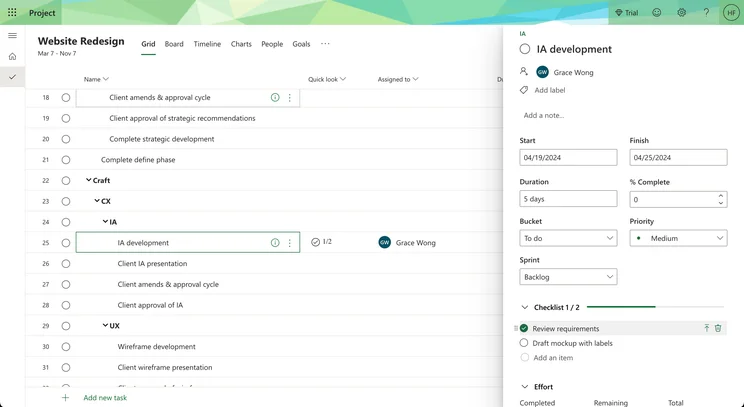
The level of detail that you can input within specific subtasks is highly impressive. Source: The Digital Project Manager
Auto-scheduling
One of the most helpful features in Project has to be the auto-scheduling feature. Project expects you to define your projects in a certain way with summary tasks, followed by sub-tasks, as well as milestones. Once you’ve entered the scope of your project and defined time frames for your tasks, auto-scheduling can automatically plan a calendar for all your tasks. You could enter your own dates manually, but auto-scheduling offers a more manageable flow on Project’s timeline and Gantt chart views.
Board view
Microsoft Project has a Kanban card and board view that is accessible via Task > View > Task Board. By default, it offers four predetermined columns: Not Started, Next up, In progress, and Done. You can also add new columns to suit your company’s workflow, rename the default columns, or delete them altogether. Like other Kanban boards, this is a drag-and-drop interface. You can also create tasks right from this interface, as well as add key information such as resources and notes.
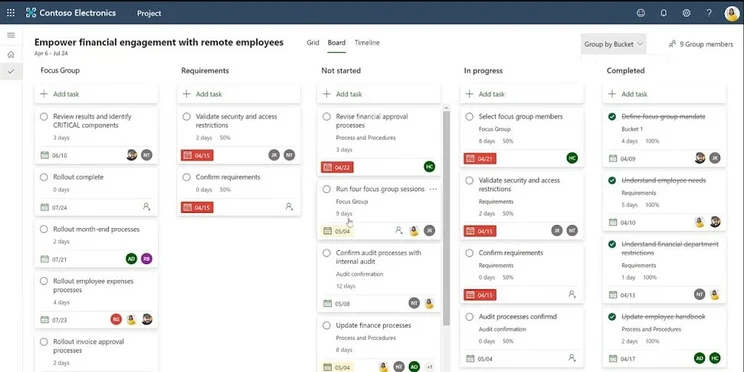
The Board view in Microsoft Project.
Notes and attaching files to tasks
Like many other project management tools, you can add notes and attach files to your tasks in Project. But in true Microsoft fashion, it uses annoyingly uncommon terminology. Double-clicking on the information cell on any task calls up a small Task Information window with six tabs. Under the Notes tab, users can jot down small rich text notes about the task.
In this section there’s also an Insert Object option, which is where you can attach a Word Document, Excel spreadsheet, PDF document, image file, and so on. It would be a lot easier to understand if this option was just called “Attach,” but like many other Microsoft products, Project has its legacies to be aware of.
Sub-projects
Forget about sub-tasks – Microsoft Project lets you embed projects within projects. This is a nice option for anyone who needs to create a master file to track multiple related projects. Once you’ve linked a sub-project to a master project, you can make changes to the former inside the latter. In addition, any changes you make inside the sub-project file will be reflected in the master project. It’s a handy feature for getting a high-level view of your projects.
Microsoft Project Alternatives
While Microsoft Project has its benefits, there are a lot of competitors that we believe have an advantage over the native Microsoft program. Firstly, monday work management is an affordable, highly customizable platform with great automation features. It’s also easier to use – you’ll find monday work management is ready to go after you upload some project data and customize your boards, whereas Microsoft Project takes a lot more setting up before it becomes effective.
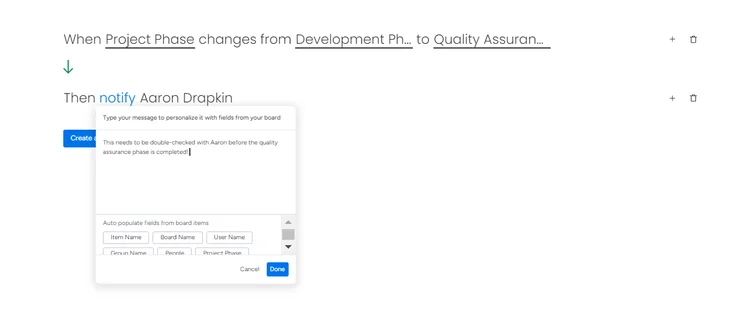
The custom automation builder on monday work management is a piece of cake. Source: Tech.co testing
There’s also Wrike, which has an entirely free tier, allowing you to get to grips with the software with no added pressure. It has a very extensive list of features and also integrates with Slack, Google Hangouts, and a wide range of both marketing and finance apps, making it one of the best options for large businesses who need a tool that will seamlessly slot into their existing software suite.
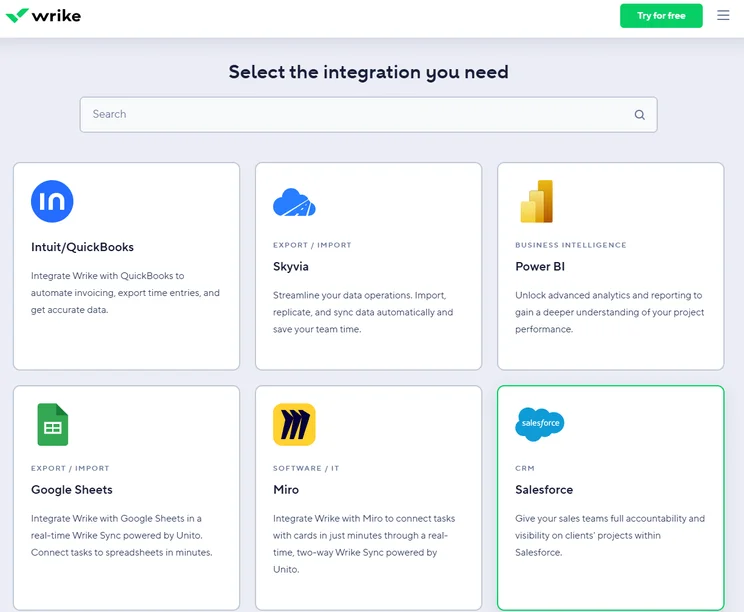
The Wrike integrations library, with a few possible options on display. Source: Tech.co testing
We’d also recommend checking out Teamwork, simply because it’s so cheap, and the free plan has so many useful features for managing projects. Without paying anything, you’ll have a tool with a Gantt chart, kanban board, and table view, as well as task management features like the ability to create sub-tasks.
Check out some of Microsoft Project’s key rivals below:
|
Price from
All prices listed as per user, per month (billed annually)
|
Best for
|
Pros
|
Cons
|
|||
|---|---|---|---|---|---|---|
|
BEST OVERALL
 |
 |
 |
 |
 |
 |
 |
|
monday work management |
Teamwork |
Asana |
ClickUp |
Wrike |
Trello |
Smartsheet |
|
$9/user/month |
$9.99/user/month |
$10.99/user/month |
$7/user/month |
$10/user/month |
$5/user/month |
$9/user/month |
|
Ease of use |
Small teams |
Building automation |
Complex projects |
Integrations |
Basic project management |
Great security and customer support options |
|
|
|
|
|
|
|
|
|
|
|
|
|
|
| Visit monday | Compare Deals | Compare Deals | Visit ClickUp | Visit Wrike | Compare Deals | Visit Smartsheet |
There’s no doubt that Microsoft Project is a very capable application with all the features required for project management. That said, this probably isn’t the ideal choice for smaller, nimbler teams.
First of all, it’s very staid in its look and feel since it’s a pure Office product. Simply put, you can find far easier and more welcoming interfaces to manage projects for smaller and mid-sized teams, such as monday work management, which has a much more minimalistic interface.
Secondly, Project doesn’t have lower priced tiers, making this product out of reach for some – though to be fair, it probably should be compared to the upper tiers of other project management tools, which hide key features behind higher priced offerings.
If your company is already highly invested in Microsoft Office, then Project is a natural extension of that investment. But if you’re not interested in Office, then Project is not an ideal choice for you – regardless of how feature-rich it might be.
Frequently Asked Questions
Microsoft Planner is included in Office 365. Microsoft Planner is Microsoft’s new, lightweight project management solution, available as a web or mobile-based application. If you’re looking for something a little more robust, you’ll have to opt for one of Microsoft’s paid plans, which start at $10 per user, per month for the Planner Plan 1.
The main benefits of Microsoft Project are its massive catalog of project management features, ability to integrate into other Microsoft software, and the familiar Microsoft interface.
The best project management software is monday work management. With a generous free trial, loads of customization options, and very handy support networks, monday work management is a great pick for any company looking for project management help.
If you click on, sign up to a service through, or make a purchase through the links on our site, or use our quotes tool to receive custom pricing for your business needs, we may earn a referral fee from the supplier(s) of the technology you’re interested in. This helps Tech.co to provide free information and reviews, and carries no additional cost to you. Most importantly, it doesn’t affect our editorial impartiality. Ratings and rankings on Tech.co cannot be bought. Our reviews are based on objective research analysis. Rare exceptions to this will be marked clearly as a ‘sponsored’ table column, or explained by a full advertising disclosure on the page, in place of this one. Click to return to top of page


