






We may receive a commission from our partners if you click on a link to review or purchase a product or service. Click to Learn More
Miro offers the best free online whiteboard tool for personal and business use, due to its extensive templates and integrations, as well as the ability to “layer” notes so that a board can hide or group specific objects on it. Other great picks include whiteboard tools offered by powerful project management software tools like ClickUp and video conferencing apps like Zoom.
Online whiteboards provide a central space for teams to discuss ideas in an interactive and visually appealing way. They make sure that remote team members can enjoy the spontaneous, multi-faceted discussions that you’d get around a physical office whiteboard.
In this guide, we’ll go through the best digital whiteboard software currently available. Large software companies provide some of them you’ll recognize – but there are cheaper, more straightforward options available too, as well as whiteboards tailored to teachers, students, and designers.
- According to our research, Miro is the best overall online whiteboard, because it offers over 7,000 templates and an extensive set of third-party integrations.
- ClickUp is another top choice for teams focused on seamlessly connecting all aspects of their project’s management, as is FigJam.
- We would also recommend Zoom Whiteboard for businesses that already have a Zoom account, as it offers the most convenient whiteboard options for remote meetings.
- All of the providers on our list have some kind of free plan, meaning your business can get started today. Otherwise, an online whiteboard will cost around $2 – $10 per user, per month.
- When choosing an online whiteboard for your business, you should consider how much you’ll use the software, its visual appearance, and pricing, among other aspects.
What Counts as Digital Whiteboard Software, and What Does It Do?
An online whiteboard is a digital canvas that businesses, school classes, and other groups can use as a platform to collaborate, discuss ideas, provide feedback, and host interactive sessions of other kinds.Online whiteboards have special features designed to help move the ideation process along and make meetings more engaging and accessible.
For example, for a feedback session, you could anonymize a board, split it into different areas for different types of feedback, and then get a visual representation of how people feel based on the information they provide.
A lot of project management tools have digital whiteboard software, as do business communications platforms like Microsoft Teams and video conferencing software like Zoom. If you already use one of these tools, we’d suggest seeing if their native whiteboards can satisfy your needs before paying extra for a separate application.
Best Online Whiteboards: Comparison Table
If you don’t have time to read all the reviews in this article, here’s a whistle-stop tour of the best online whiteboards you can currently access. While their paid plan prices vary, all six of the online whiteboards featured in this article have some sort of free plan.
|
Image
|
Brand
|
Price from
|
Free plan?
|
Key Features
|
Verdict
|
|---|---|---|---|---|---|
|
Best Overall
 |
Best for Projects
 |
Best for Remote Video Calls
 |
Best for Teachers
 |
Best for Design Teams
 |
Best for Simplicity
 |
|
Miro |
ClickUp (Whiteboards) |
Zoom Whiteboard |
Explain Everything |
FigJam |
Onlineboard |
|
$8/user/month |
$7/user/month |
$2.08/user/month |
$69/year |
$3/user/month |
Free |
|
|
|
|
|
|
|
|
|
|
|
|
|
|
The best online whiteboard currently available, with unique in-meeting features and hundreds of useful integrations. |
The best online whiteboard for project planning, which lets you import project information from other areas of ClickUp for a seamless experience. |
An easy-to-master whiteboard tool with detailed templates that can be accessed directly from within Zoom calls. |
A great whiteboard tool for teachers, with colorful templates and engaging session plans. |
A powerful online whiteboard that connects to the Figma platform, which is ideal for UI/tech design teams. |
Fast movers may enjoy this “just-the-basics” option that won’t require sign-ups and auto-deletes your work afterwards. |
The Best Online Whiteboards: Reviews
Below, we’ve reviewed the best online whiteboards currently available and made a judgment on the use case they’d best suit:
- Miro: Best Online Whiteboard Overall
- ClickUp’s Whiteboards tool: Best for Project Planning
- Zoom Whiteboard: Best for Remote Video Calls
- Explain Everything: Best for Teaching
- FigJam: Best for Design Teams
- Onlineboard: Best for Basic Whiteboarding
1. Miro: Best Online Whiteboard Overall
Miro’s whiteboard features:
- Over 7,000 board templates available
- Over 250 apps available
- Unlimited boards available on first paid plan
- Built-in timers to aid with meeting management
- Talktracks feature that provides video walkthroughs of your boards
Miro’s whiteboard is more feature-rich than any other platform on this list, integrates with a huge range of software programs, and has over 7,000 board templates available. Free users can access all these templates, along with over 250 apps and the layering functionality they need to reveal, hide, or group objects on the same board.
Miro’s first paid plan will allow your team to create unlimited boards, to which you can add a range of different templates. This is a huge upgrade on the 3 editable boards available on the free plan, and it also includes board version history for tracking changes.
From my experience, Miro’s advanced features make it genuinely more useful as a collaboration tool. It’s very easy to get carried away in meetings if the ideas are flowing – but Miro’s built-in timers aid with meeting management. Board version history, on the other hand, ensures you can recover lost content.
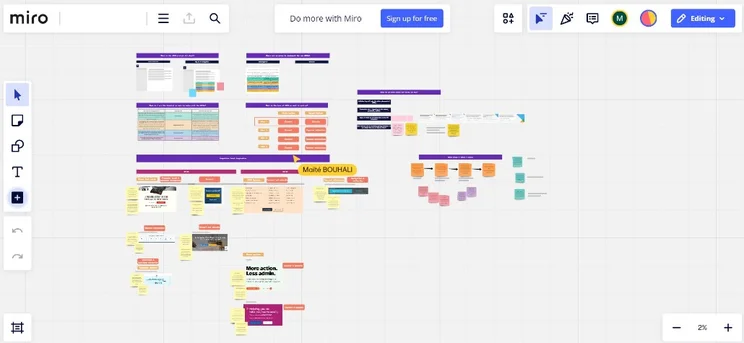
A zoomed-out look at a full Miro board – you can simply scroll to different areas of the board if you want to view the information there. Source: Tech.co
On all of Miro’s paid plans, the Talktracks feature can provide interactive video walkthroughs of your boards for those who weren’t in meetings, saving everyone time. I’ve found this really useful when I’ve missed a session, and instead of scrolling around the Miro board, I’ve been able to just sit back and relax.
I also like the presentation templates on offer – especially the interactive sessions. You’ll be able to pan around a large Miro board, hopping between different areas and ideas, and get your team involved at whatever stage you choose, and there are features like breakout rooms to facilitate mid-session discussions.
In addition to all of this, Miro’s raft of integrations makes hopping onto the app for a session quick and simple. All of Miro’s plans – including the free plan – sync with 250 other popular apps, including Zoom, Slack, Webex, Confluence, Jira, Google Meet, Google Drive, and monday work management.
How much does Miro cost?
Miro has a free plan available, but you’ll only be able to make 3 editable boards. Here are the paid plans also on offer with Miro:
- Starter: $8 per member, per month
- Business: $16 per member, per month
- Enterprise: Custom pricing
Admittedly, Miro is more expensive than options like FigJam and Zoom. However, it’s topped our list because it’s worth the extra cost, especially with the hundreds of integrations on offer and the unique in-meeting features you just won’t get with any other provider.
2. ClickUp: Best Online Whiteboard for Project Planning
ClickUp’s whiteboard features:
- Import tasks directly to the whiteboard from ClickUp
- Plenty of customizable diagrams on offer
- Collaboration tools such as a project message board
- Drag visual content directly onto your whiteboard
ClickUp – which came third on our last round of project management testing – provides the best whiteboard for project planning. ClickUp’s online whiteboard is integrated into its project management platform really well. When testing ClickUp, I was able to quickly import tasks directly into the whiteboard that were relevant to my discussion.
You can also drag website previews and other types of visual content you may want to discuss directly onto your board, such as a Google Doc you can edit within the board. What’s more, I found the range of diagrams on offer and the way you could customize them with just a click of your mouse very impressive.
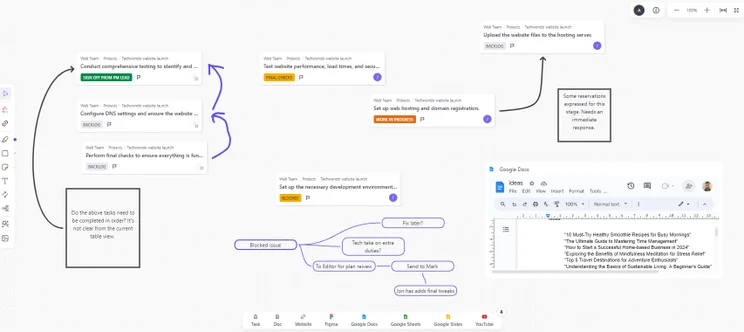
Importing tasks for a discussion supported by ClickUp’s whiteboard. Source: Tech.co
Along with the interactive online whiteboard, ClickUp also provides a raft of other useful collaboration tools like a project message board and task comments.
However, actually using the whiteboard isn’t quite as smooth an experience as it is with Miro or Zoom. In this sense, it’s slightly more functionally restrictive.
That’s the sum of it with ClickUp’s online whiteboard. If you’re about to start managing a collaboration-heavy project, you’ll appreciate the platform’s task management and data visualization capabilities when you’re not ideating or brainstorming, among many other useful project management features.
But if you want an all-purpose collaboration app that can be used by your team outside of the context of a project, I think Miro is the better option.
How much does ClickUp cost?
ClickUp pricing starts with a free plan, with which you can make up to three whiteboards. Otherwise, you can opt for a paid plan:
- Unlimited: $7 per user, per month
- Business: $12 per user, per month
- Enterprise: Custom pricing
While ClickUp can’t boast extra-low costs like Zoom or FigJam can, it comes in at slightly cheaper per month than our top pick, Miro, and can certainly be hailed as a worthy alternative. Especially if you’re looking to seamlessly connect other areas of the platform to your whiteboard.
3. Zoom: Best for Remote Video Calls
Zoom’s whiteboard features:
- Integrated into Zoom’s video conferencing technology
- Templates for icebreakers, mapping, diagramming, and more
- Presenter instructions provided on each template
- Easily upload and resize images
In the new age of remote work, millions of workers across the globe rely on Zoom for video meetings. So, it’s only natural that the provider has an online whiteboard integrated into its video conferencing technology that you can use to keep a remote team engaged. For this job, it’s a lot better than Google Jamboard, FigJam, and ClickUp.
In fact, there’s no better option if you’re already a Zoom user. Instead of having to switch to another app, all you have to do while on a call is open the Zoom whiteboard if you want to start writing down ideas or collating feedback. This makes it perfect for turning your board into a presentation straight away, too.
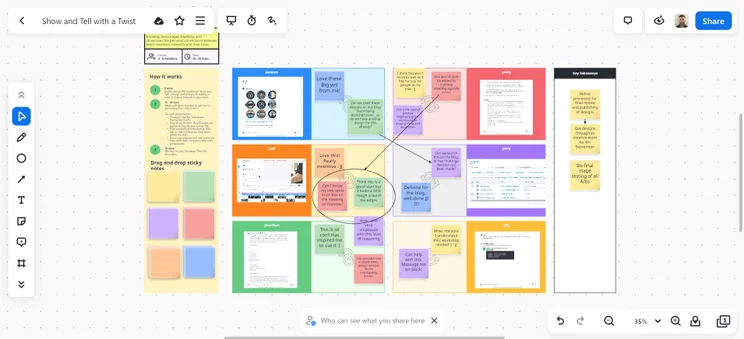
A Zoom whiteboard template is being used for a website design review activity. Source: Tech.co
While Zoom’s whiteboard is a little bit basic compared to the likes of Miro, it’s still got hundreds of board templates on offer and everything you need to run a session, from icebreakers to mapping and diagramming. Plus, I quite liked the fact that it felt simpler and familiar.
I found Zoom easier to use than Miro, and the actual editing/drawing mechanism is a lot smoother than Explain Everything and FigJam. Editing feels really smooth and I think it could be easily mastered by an online whiteboard newbie. Uploading images and resizing them was much easier than it was in ClickUp.
I also like the way that extensive instructions are provided alongside each template, showing you precisely how to run the sessions. This makes the templates useful and means you don’t have to spend time trying to figure out how to use them.
How much does Zoom cost?
You’ll need to create a Zoom account to use its whiteboard – but for those of you who already have a Zoom Basic subscription, you can start using Zoom’s Whiteboard free of charge. The whiteboard is included in the free Zoom Basic plan is limited to 3 boards, however.
If you want more powerful features, you’ll have to purchase one of these paid plans:
- Whiteboard: $2.08 per user, per month
- Whiteboard Plus: $5.83 per user, per month
Given you can start using Zoom’s Whiteboard with a Zoom Basic subscription, which is free, this is a pretty sweet deal, especially for businesses that are already using Zoom. For some users looking for more complex functionality, however, I think you’d be better off with an option like Miro or ClickUp.
Visit our Zoom pricing page for more information.
4. Explain Everything: Best for Teaching
Explain Everything’s whiteboard features:
- Education-focused platform for teachers
- Start with either a blank canvas or a preset template
- Only simple tools on offer
- Up to 3 projects and 500MB cloud storage on free plan
Explain Everything is the must-have online whiteboard app for teachers, with loads of options for different classroom activities and sessions.
When I signed up for Explain Everything, it gave me the option to start with a blank canvas or a preset template. The other option is attaching a file, which you can use if you already have some information you’d like to place on your jam board.
Explain Everything has a wide range of education-focused templates. The class activities section includes templates that are suitable for younger students, such as the one pictured below, while other templates in the planning area are more suitable for older students, such as the “author’s purpose” template for English classes.
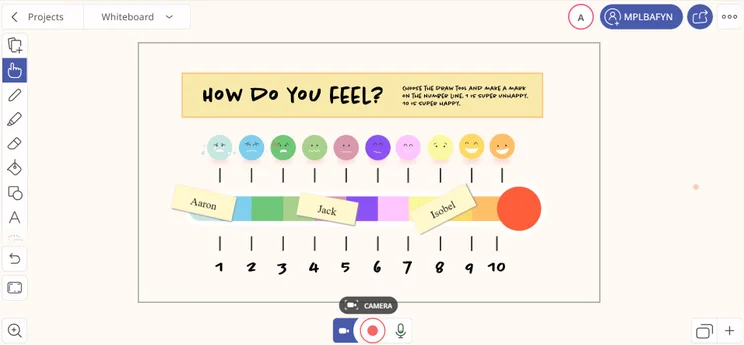
Running a session with Explain Everything. Source: Tech.co
While Explain Everything is great for teachers, it won’t be suitable for any other teams that need an online whiteboard. Although you can start with a blank canvas, the tools are quite simple, and what’s on offer is similar to Google’s Jamboard.
How much does Explain Everything cost?
Explain Everything offers a free plan, which has more than enough features for the average teacher in charge of a remote class, but it sets restrictions on recording limits, and you can only create three projects at a time.
However, the Advanced plan that retails at $69 per year offers unlimited projects and includes unrestricted recording. This is the equivalent of $5.75 per month, which bodes quite well compared to the competitors on our list, as it’s cheaper than both Miro and ClickUp.
However, it’s important to note that Explain Everything is tailored towards teachers, so its features will align with this mission.
There’s also a “school” plan which can be used school or district-wide and offers up to 10GB of cloud storage per teacher, although you’ll have to contact the company for a quote.
5. FigJam: Best for Design Teams
FigJam’s whiteboard features:
- Connects nicely with Figma for design teams
- Range of templates on offer
- Collaboration tools like an option to take votes from users
- AI tool to generate maps and diagrams for your whiteboard
Figma is a collaborative platform designed for digital design teams, who make things like user interfaces for websites and apps – and it has an online whiteboard available called FigJam, which is ideal for design teams who need a space to collaborate.
“I like that I can copy elements between Figma and FigJam, and don’t have to jump between windows or software. Instead, I can keep my designs and boards in the same place,” explains Senior UI designer Bart Dabrowski, who uses FigJam and Figma side-by-side.
FigJam has some really useful templates for sprints and other agile ways of working that are typically utilized by design teams. Plus, if you’re already using Figma – as design teams like Bart’s are – it’ll slot seamlessly into your workflow.
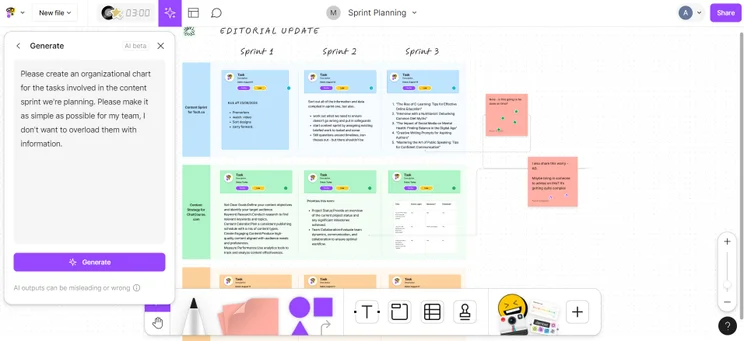
Using FigJam’s whiteboard to host a feedback session. Source: Tech.co
However, unlike ClickUp’s online whiteboard, you can actually access FigJam separately if you’re on a tight budget. Plus, it includes more whiteboard-specific collaboration tools like a feature that will let you take votes from users.
FigJam also has an AI tool that will generate maps and diagrams for your online whiteboard, such as the org chart I got it to generate when I was testing the platform. Although it didn’t auto-populate it with my board’s information, it saved me from building it from scratch.
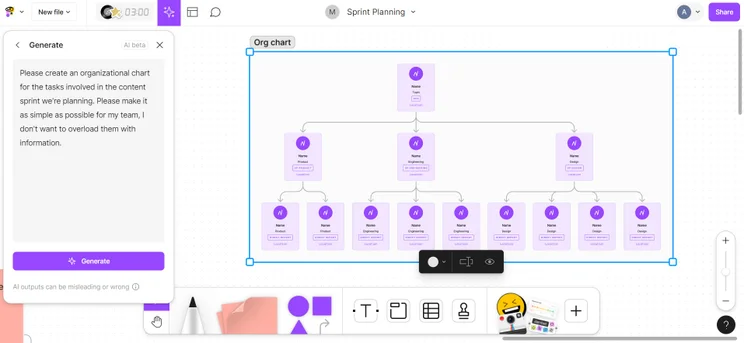
Using FigJam’s AI tool to generate an org chart on our whiteboard. Source: Tech.co
How much does FigJam cost?
FigJam has a free plan that includes 3 collaborative design files, unlimited personal drafts, and basic file inspections. Paid plans include:
- Professional plan: $3 per user, per month
- Organization plan: $5 per user, per month
- Enterprise plan: $5 per user, per month
FigJam is one of the cheapest options on our list, more affordable than both Miro and ClickUp. This makes it a a great option for businesses on a budget and, like ClickUp, FigJam will connect easily with your existing Figma projects.
6. Onlineboard: Best for Basic Whiteboarding
Onlineboard’s whiteboard features:
- No sign up required
- Collaborate with up to 4 users on the free plan
- 7 different pen colors, an eraser, and an “emotes” tool for emojis
- Users cannot type text onto board
- No sticky notes available
Onlineboard is a free-to-use online whiteboard that emphasizes simplicity. With no signup required, Onlineboard is a great solution for people in a bind who need a simple canvassing tool. Users can literally get started with just a click or two, making it a great option for teams looking for a quick icebreaker game to kick off a meeting.
To collaborate remotely, you just have to send the link to the person you’d like to work with. On the free plan, you can collaborate with up to 4 users, but this jumps up to 64 for the Pro plan, which is currently in its beta phase.

I found Onlineboard to be reasonably intuitive. Drawing a smiley face with a Bluetooth mouse was pretty easy. Source: Tech.co testing
Users of the Onlineboard free plan get access to 6 different pen colors, an eraser, and an “emotes” tool for using emojis. You’ll want to save your work once you’re done, too: The boards will expire after one hour of inactivity. It’s a limited feature set, and I was disappointed by the inability to type text, which means that Onlineboard will be quite challenging for users who need to exchange written messages.
I was also a little disappointed by the absence of sticky notes, which you can find on Miro. But all in all, it’s a pretty useful tool that will appeal to businesses that need basic whiteboarding services, or provide a welcome alternative to services that require membership.

The Onlineboard tool belt includes pens in 6 different colors, an eraser, an undo, an “emotes” tool, and a navigation tool. Source: Tech.co testing
How much does Onlineboard cost?
As mentioned, Onlineboard starts with a decent free tier, which will get you access to real-time collaboration, basic whiteboarding tools, 4 concurrent users, and up to 7 pen colors.
The Pro Plan, which is currently in its beta phase, unlocks extra functionality, including private boards, up to 255 customizable colors, and fine-grained access control. The beta version is free, and interested parties can register for full access now.
The final tier is the Enterprise Plan, which offers custom pricing on a case-by-case basis. You’ll get everything in the previous plan, in addition to unlimited boards, up to 255 concurrent users, and more.
As Onlineboard is currently completely free, it’s definitely a solid option for most businesses. However, I would say that Onlineboard isn’t a solid long-term solution for those wanting to make the most of an online whiteboard. For that, I’d recommend ClickUp, FigJam or Miro.
How to Choose an Online Whiteboard
Choosing an online whiteboard isn’t easy. There are lots of things to consider before you buy one, and not all whiteboards will be suitable for all use cases. For instance, we wouldn’t recommend Explain Everything for business collaboration, but it’s great for teachers.
Here are a few factors to consider before you make a final decision on the online whiteboard tool you’re going to go for:
- How much you’ll use it: If you’re going to be using your online whiteboard every day, it might be worth going for a more powerful paid version than if you’re only going to use it once a month – in which case, you’ll probably be able to make do with a basic, free alternative.
- Visual appearance: Every online whiteboard looks a little different, and no two whiteboards deploy the same style. While this will be largely down to personal choice, it’s important to select an interface that won’t detract from or overcomplicate the visual collaboration process.
- Wider program: Some online whiteboards are standalone tools, like Explain Everything. Others are available within larger software tools, like ClickUp. The latter will be perfect if you also need a tool to manage a project, but not everyone needs a comprehensive workspace tool.
- Presentation options: Consider whether you’ll be able to use your whiteboard to present your ideas back to your wider team or company, and whether non-meeting participants can view the board online afterward.
- Board limits: The bigger the team, the more boards you’ll need, and some online whiteboard providers will allow you to create and save more boards than others.
- Pricing: If you’re looking for an online whiteboard and don’t have much of a budget to spend, the good news is that there are loads of free online whiteboards. However, if you’re about to take part in a collaboration-heavy project with lots of team members involved, you may want to pay a little bit extra for advanced features.
There’s a reason why tens of millions of businesses already use Miro. There’s a much wider range of templates and more integrations offered by Miro than any other provider, which means it’s easy to get started and share your notes and discussion points once you’re finished.
On top of this, advanced features like a built-in timer, voting, and optional anonymity mean that it can be appropriately used to facilitate a wide range of interactive sessions, from content ideation meetings to feedback forums, and provide resources that other employees can watch again.
However, some people — namely teachers — might not need all these business-focused features for their remote interactive discussions with their pupils, so they will prefer an education-focused online whiteboard like Explain Everything.
Online Whiteboard FAQs
There’s actually a huge range of digital whiteboard software available for free. Most online whiteboards, like FigJam and Miro, offer free plans, while other products like Google Jamboard are free as long as you have an existing Workspace account.
Miro is our top online whiteboard, and technically, you can use it without logging in. However, you won’t have access to the same features as you would with a free, signed-in account or one of Miro’s paid plans, which start from $8 per member, per month.
We’ve tried out a fair few online whiteboards, and the best one overall is Miro, thanks to its huge range of features, such as board version histories and private mode, as well as its huge range of integrations and templates. However, if you just need a straightforward platform for brainstorming ideas, Google Jamboard will be just fine.
Yes – Google Jamboard is available for teams that want to brainstorm ideas, but it’s quite basic compared to dedicated whiteboard tools like Miro. So, if you need it for a quick ideation session, it’ll be perfect – but any large-scale brainstorming should lead you to look elsewhere.


