

We may receive a commission from our partners if you click on a link to review or purchase a product or service. Click to Learn More
X — formerly known as Twitter — is one of the only places that lets you catch up on news, follow the lives of celebrities, and feud with internet trolls all from the comfort of one site. Despite still being one of the most visited sites in the US, its users have been in steady decline since Elon Musk took over as CEO last November — and for good reason. Thinking it’s time you should delete Twitter / X, too? Read on and you’ll see how easy it is to do just that.
From its controversy-stoking algorithm and lack of content safeguards to its hasty rebrand to X, there are many valid reasons for joining the Twitter exodus. Here’s how to delete Twitter / X or deactivate your account in a few simple steps, plus how the app can be reactivated for those who are only planning on taking a break.
Scroll down for step-by-step instructions with screenshots, or jump to a section of your choice using the links below.
What’s the Difference Between Deactivating and Deleting Twitter / X?
While deactivating and deleting your Twitter / X account will both hide the account, its posts, and any followers from the public eye, there’s a major difference between the two.
Users who deactivate their account will be able to reactivate it within a 30-day window. However, if this period passes without the account being reactivated, it will be deleted, erasing all account information permanently and withdrawing the option to reactivate.
In this respect, X (formerly Twitter) does things a little differently to Meta-owned social media apps. When you delete Instagram or delete Facebook, users get the option to delete their accounts with instant effect. Deleting and deactivating your Twitter / X account is straightforward though, so read on to learn how to delete it on desktop, iOS, and Android devices.
How To Delete Twitter / X on Desktop
If you use Twitter / X on your laptop and computer, follow these steps to deactivate or delete your account:
- Log into your account if you haven’t already
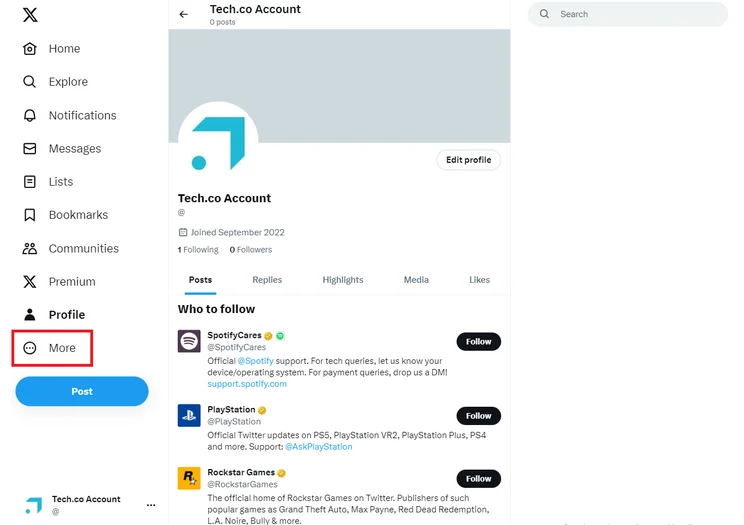
- Select the “More” button with the three dots on the left of your homepage
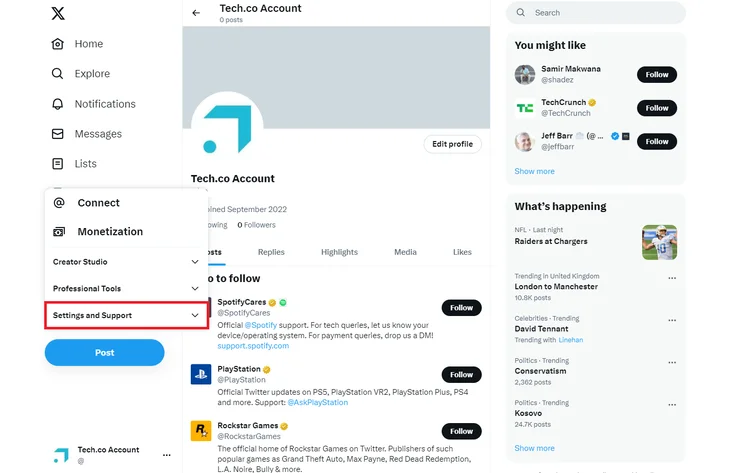
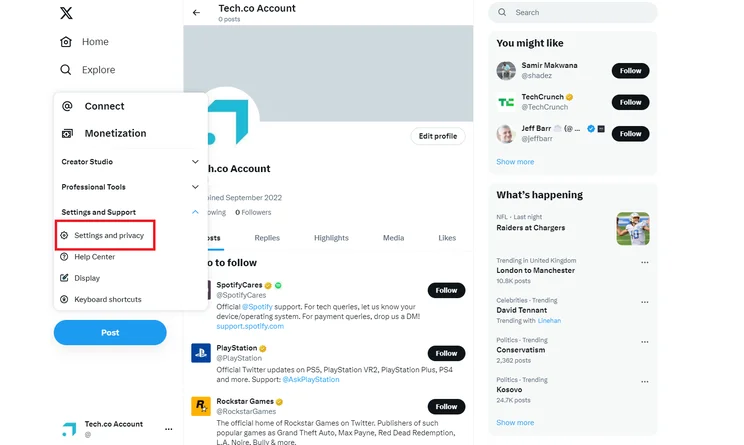
- Select “Settings and privacy” under the “Settings and Support” section
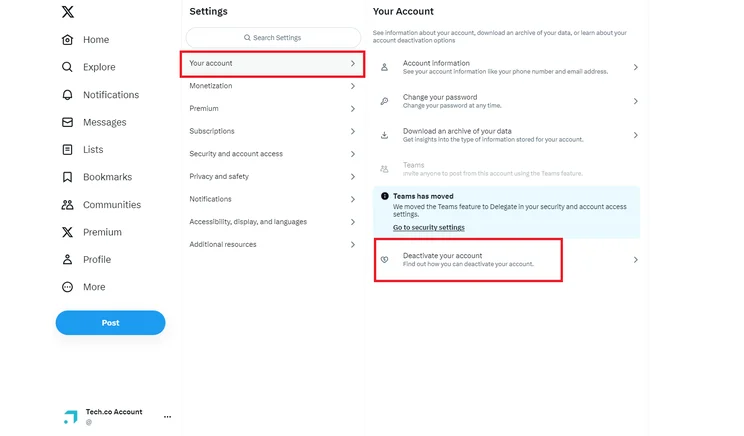
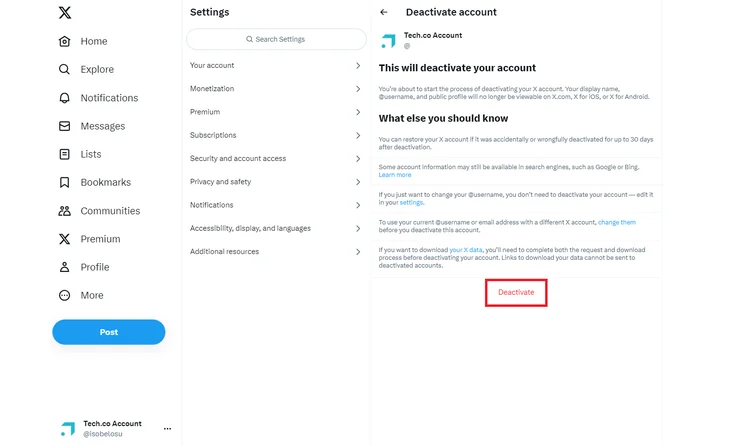
- Click “Deactivate your account” under the “Your account” section
- Select “Deactivate”
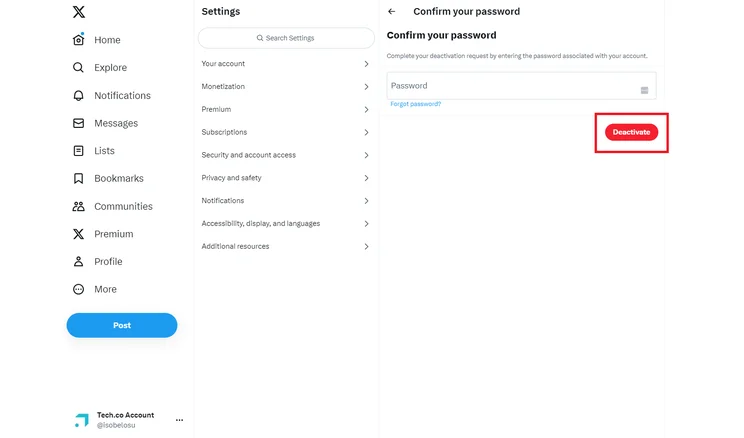
- Enter your password then select “Deactivate” again
Your account will now be deactivated, and will become permanently deleted if you don’t log back in during the 30-day deactivation period.
How To Delete Twitter / X on iOS
You don’t need to use a desktop device to manage your Twitter / X account. You can also deactivate or delete Twitter / X on your iPhone or iPad device. Here’s how:
- Log into your account if you haven’t already
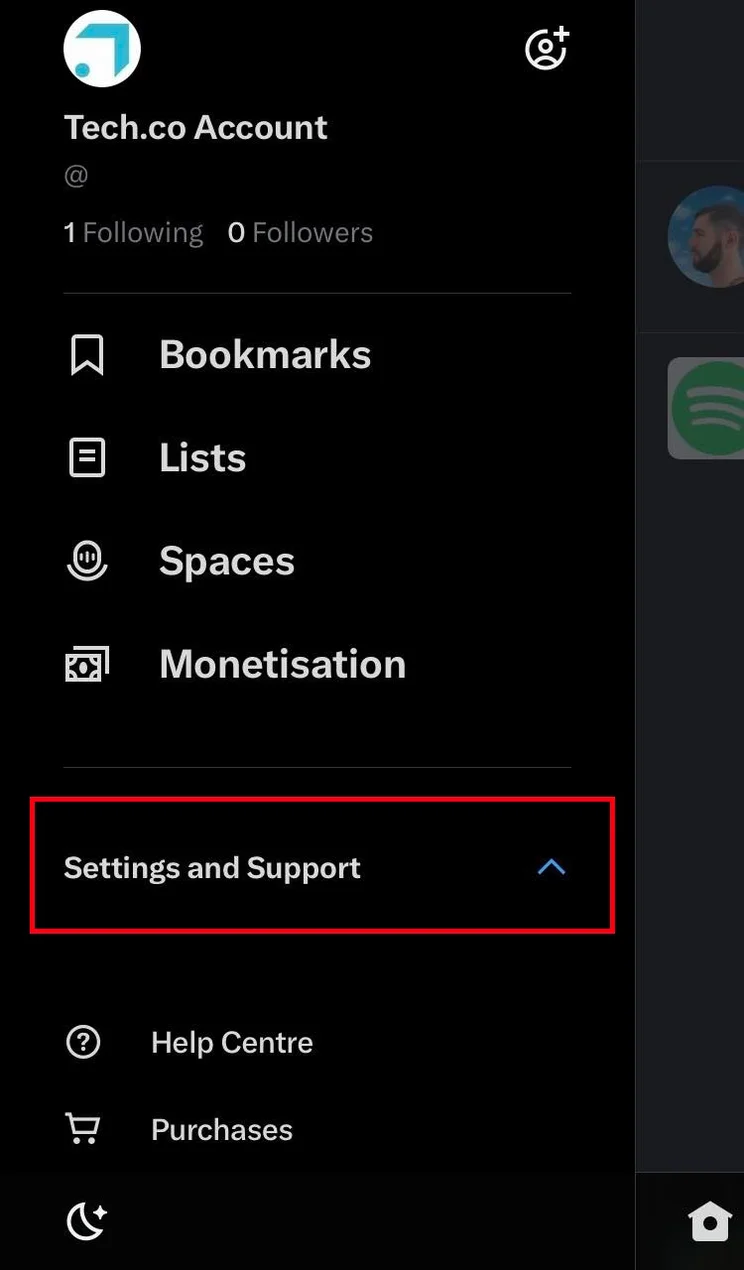
- Click on your profile picture on the top left of the homepage
- Select “Settings and privacy” from the dropdown menu
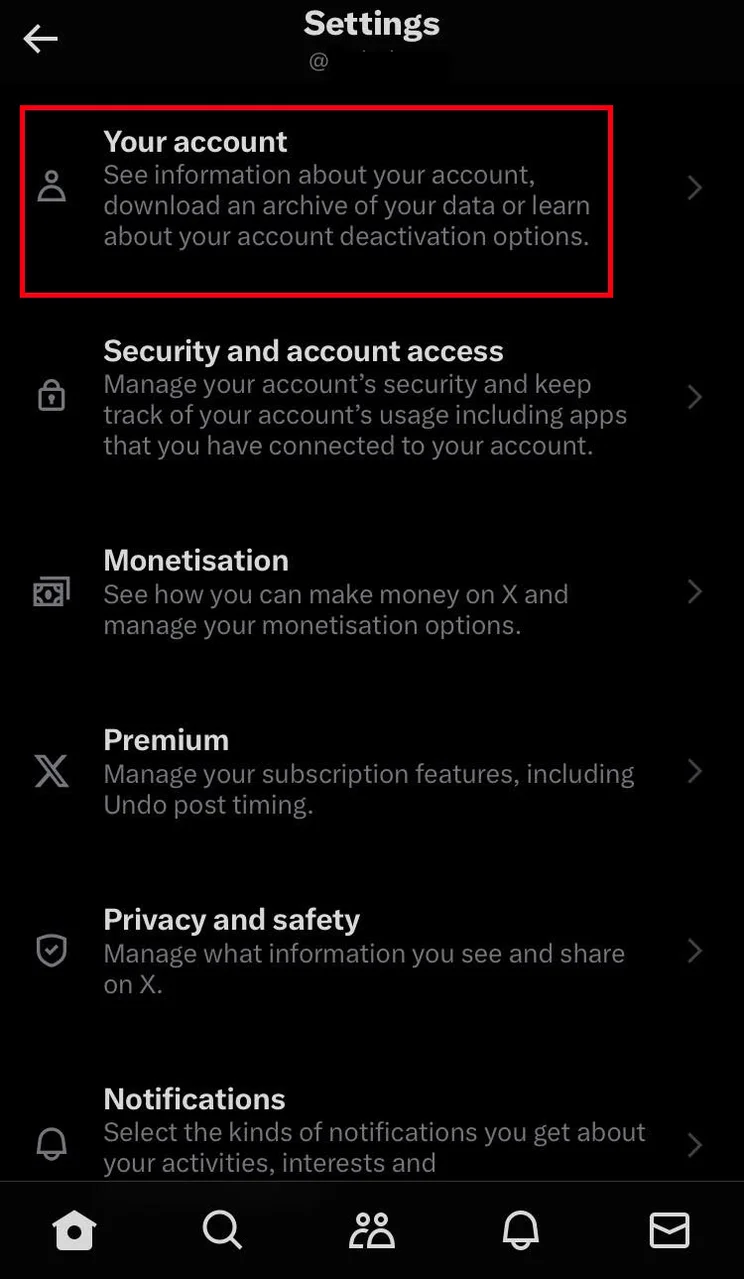
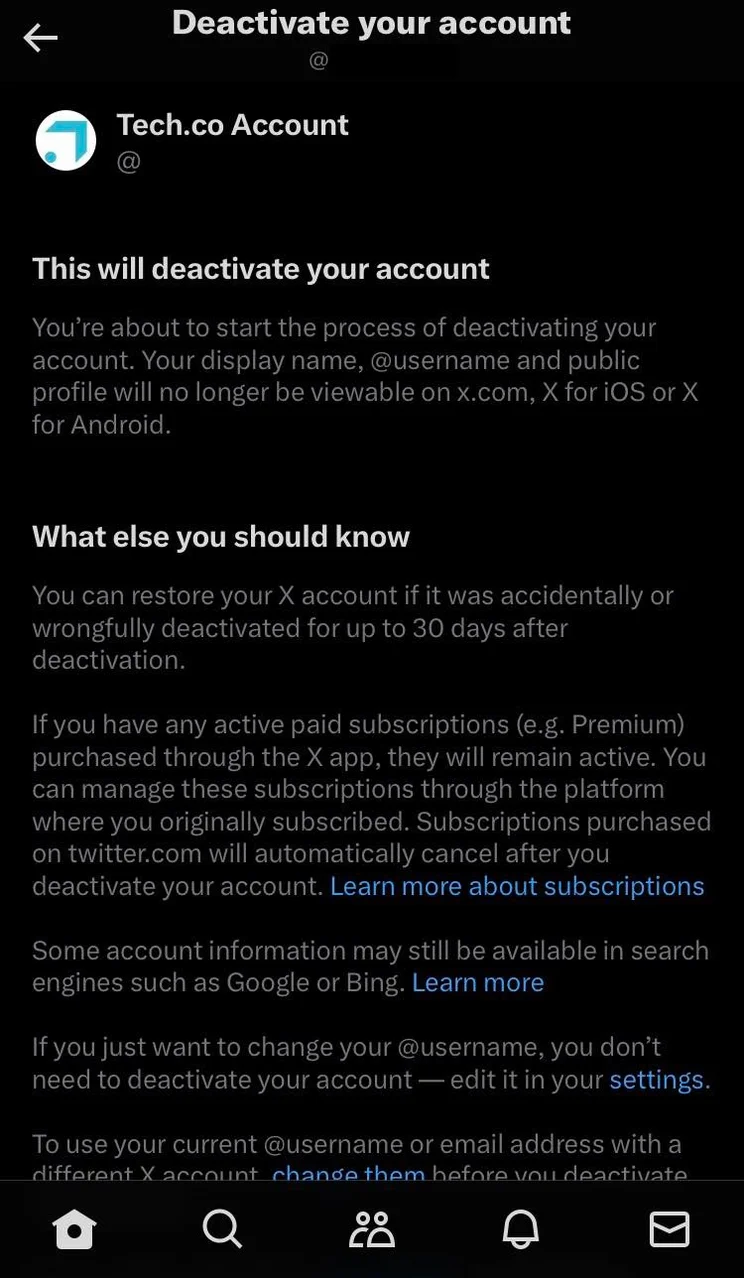
- Click “Your account” and then “Deactivate your account”
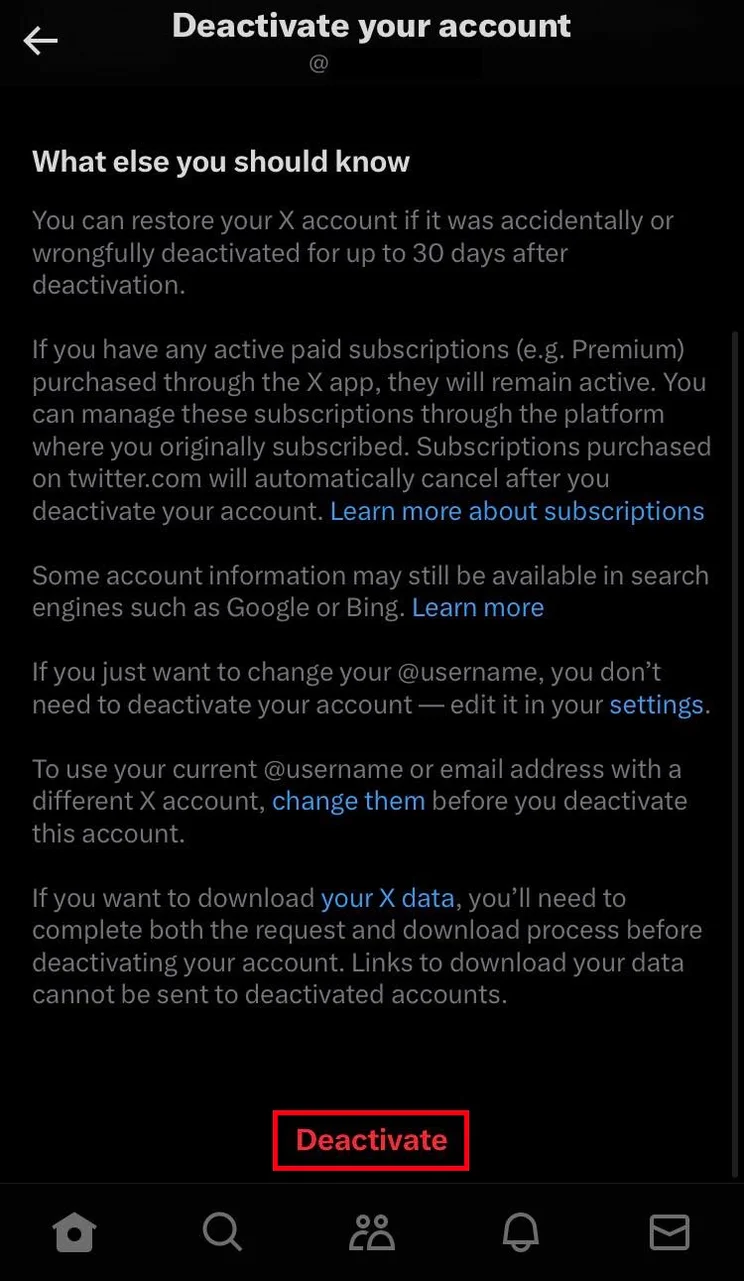
- Read though the text carefully, then confirm your decision by selecting “Deactivate”
- Confirm your password and then select “Deactivate” again
- Confirm your decision one last time by pressing “Deactivate”
Your account will now be successfully deactivated. Just like when you deactivate your account on desktop, you’ll be able to reactivate your account within 30 days if you choose to.


How To Delete Twitter / X on Android
Using Twitter / X on an Android device? Deactivating or deleting your account is still a straightforward process, as long as you follow the steps below.
- Log into your account if you haven’t already
- Click on your profile picture on the top left of the homepage
- Select “Settings and privacy” from the dropdown menu
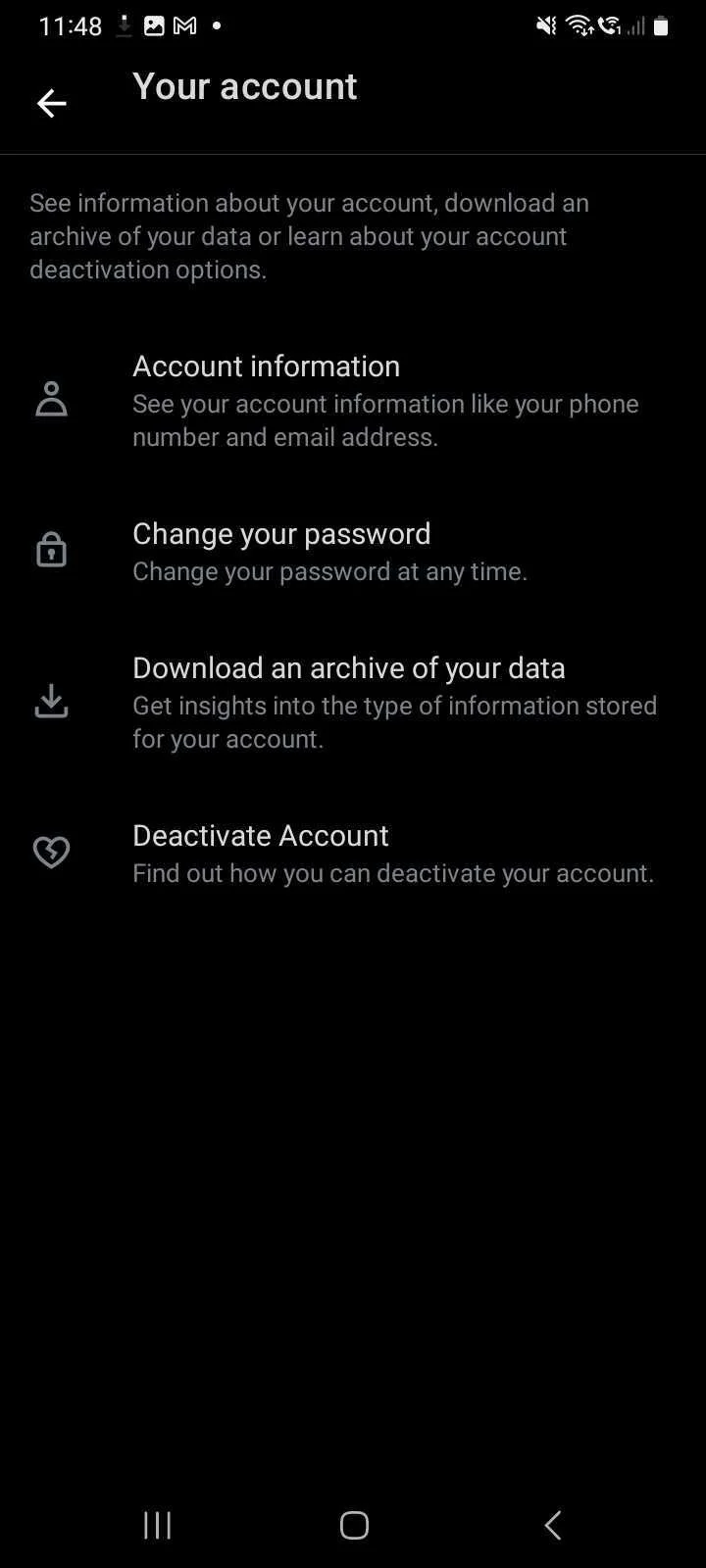
- Click “Your account” and then “Deactivate your account”
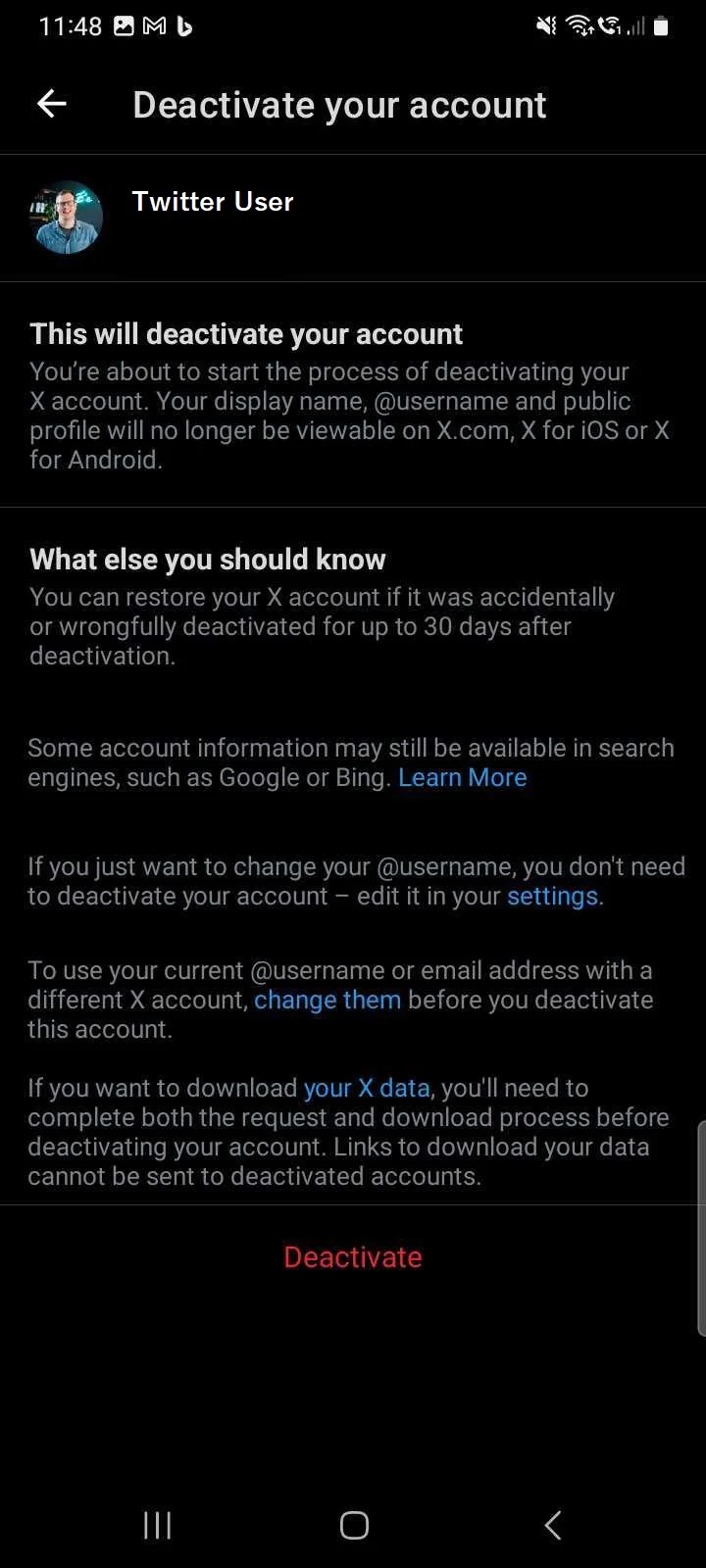
- Read though the text carefully, then confirm your decision by selecting “Deactivate”
- Confirm your password and then select “Deactivate” again
- Confirm your decision one last time by pressing “Deactivate”
Your account will now be deactivated. Wait 30 days without reactivating to delete it permanently.

How To Reactivate Your Twitter / X Account
Deactivating your account isn’t a permanent action. If you’re missing the Twitter tea you can reactivate your account any time before the 30-day window ends.
All you have to do is enter your login credentials and sign back into your account – it’s that simple. Once you’re in, confirm that you want to reactivate your account and you’ll be directed back to your homepage.
How Do I Save My Data Before I Delete a Twitter / X Account?
If you’re planning to delete your account for good, or are uncertain whether you’ll reactivate it again, it’s a sensible idea to back up your Twitter / X data up first. This is a non-essential step, but is a must if you don’t want your profile information, posts, direct messages, or media to be lost forever.
The process is slightly different on desktops and smartphones, however, so read on to learn how to archive your data on desktop, iOS, and Android devices.
On desktop:
- Log into your account if you haven’t already
- Select the “More” button with the three dots on the left of your homepage
- Select “Settings and privacy” under the “Settings and Support” section
- Select “Your Account” and then “Download an archive of your data”
- Type in your password to verify your account
- Complete the two-factor verification via email or text message
- Click “Request archive”
On iOS or Android:
- Log into your account if you haven’t already
- Click on your profile picture on the top left of the homepage
- Select “Settings and privacy” from the dropdown menu
- Click “Your account” and then “Download an archive of your data”
- Confirm your password, and then select “Request archive”
How To Delete Twitter / X: FAQs
Once your X/Twitter account is deleted, your data will be permanently erased. However, if your account is deactivated (before the 30-day cut-off point) you’ll still be able to receive your personal user data.
Once your account is permanently deleted after the 30-day deactivation period, your username will be lost and available for other X/Twitter users to claim.
To delete your X/Twitter, you need to deactivate your account for 30 days. After this period, your account will be permanently deleted and your personal data and username will be lost.


