

Get ready to take your friendship in-jokes to the next level: WhatsApp’s brand-new sticker feature now lets users create their own stickers. That’s right, you can take any old photo or meme that you have lying around and turn it into your own personal reaction, all from within the app itself.
It’s a first on mobile for the popular Meta-owned messaging app, although third-party apps have been offering custom WhatsApp sticker packs to enterprising users for a while now.
The new feature is rolling out to iOS 17 and newer users over the coming days, although Android users are being left in the lurch for now. Here’s a quick guide to how you can create and share your own stickers on WhatsApp.
How to Create Your Custom WhatsApp Stickers
First, update your WhatsApp, to ensure you have the latest version.
Once you do, open up your stickers tray and hit the big “+” symbol that you normally use to find more stickers. This time, you’ll see a “Create Sticker” popup that includes two options: “Use a photo” or “Generate with AI.”

This just in! View the top business tech deals for 2026 👨💻
If you chose to use a photo, you’ll pull up your entire iOS photo gallery, which you can swipe through to find a photo you took yourself or saved from the internet. Once you click on one of them, you’ll get two sticker options: One is the entire image, and another is an auto-generated cutout of the key figure or element that the photo features.
It worked pretty well for me, turning a photo of me holding my cat into a cutout of the two of us, and a photo of someone on a motorcycle into a cutout of just the person and the cycle together.
As with normal stickers, once you send the custom sticker you created, it will be automatically stored in your sticker tray, available whenever you need it in the future.
How to Edit Your Custom WhatsApp Stickers
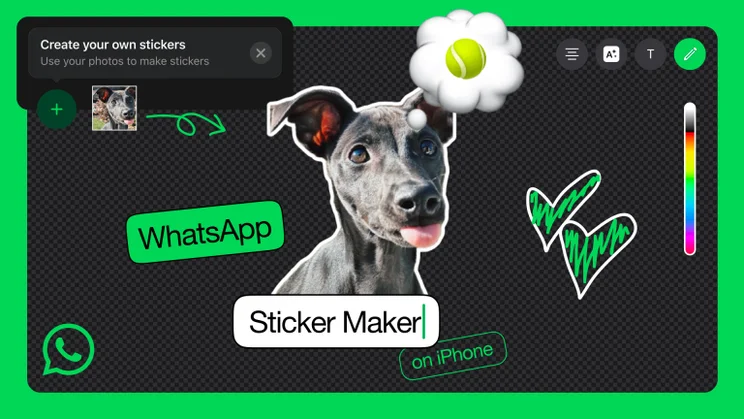
You don’t have to just pick the quick and easy option: WhatsApp’s sticker editor lets you get a little more fancy.
A few buttons at the top of the editor allow users to add text bubbles, choosing from a range of colors and fonts, and you’ll have a drawing tool as well. If you’re familar with other social platform interfaces such as the Instagram Story editor, you’ll be able to pick this up easily.
You can edit an existing sticker from your tray: Just long-press the sticker in order to pull up the edit options.
Go Impress Your Friends and Family
The stickers have just debuted, so you’re now in an elite group of sticker-editing masterminds. Go impress your mom with a custom sticker about how you love her, or annoy your best friend with that one annoying picture of themselves that they hate. The power is yours.
Your knowledge of WhatsApp doesn’t have to end here, though: We’ve previously issued a list of the top 11 tips and tricks to know about the app, letting you in on everything from setting your wallpaper to sending a message that will automatically disappear after 24 hours or a week. With this knowledge, you’ll be truly unstoppable. You just need to come up with a sticker to celebrate.


